 PVA
Example 1.2: A Radial Slice
Read a real model file, cut one radial layer out of it, plot it, and package the result as a group.
Shortcuts are written Ctrl+…; macOS shows ⌘.
Goal
Read a real model file, cut one radial layer out of it, plot it, and package the result as a group.
The MAS sample data
MAS is the Magnetohydrodynamic Algorithm outside a Sphere, the PSI model of the solar corona. Its output files are 3-D HDF files holding one variable on a spherical (r, theta, phi) grid. The tutorial uses the br002 sample: the radial magnetic field in the corona domain. With source set to psi-data-utils, the file is downloaded and cached on first use.
Readers versus Read
A reader (MAS File) is a description of a file: where it is, which variable, which unit and mesh. It loads nothing. A Read node turns a reader into a dataset, the object that functions and Plots consume. Keeping the two apart lets many Reads share one file.
Read’s method: index selects grid points by index. Each axis takes a window (start, stop); an equal pair such as (0, 0) is a single cut, and the lock keeps the pair equal. Value windows, which use physical units instead of indices, are described in example 1.3.
Plot of a grid slice
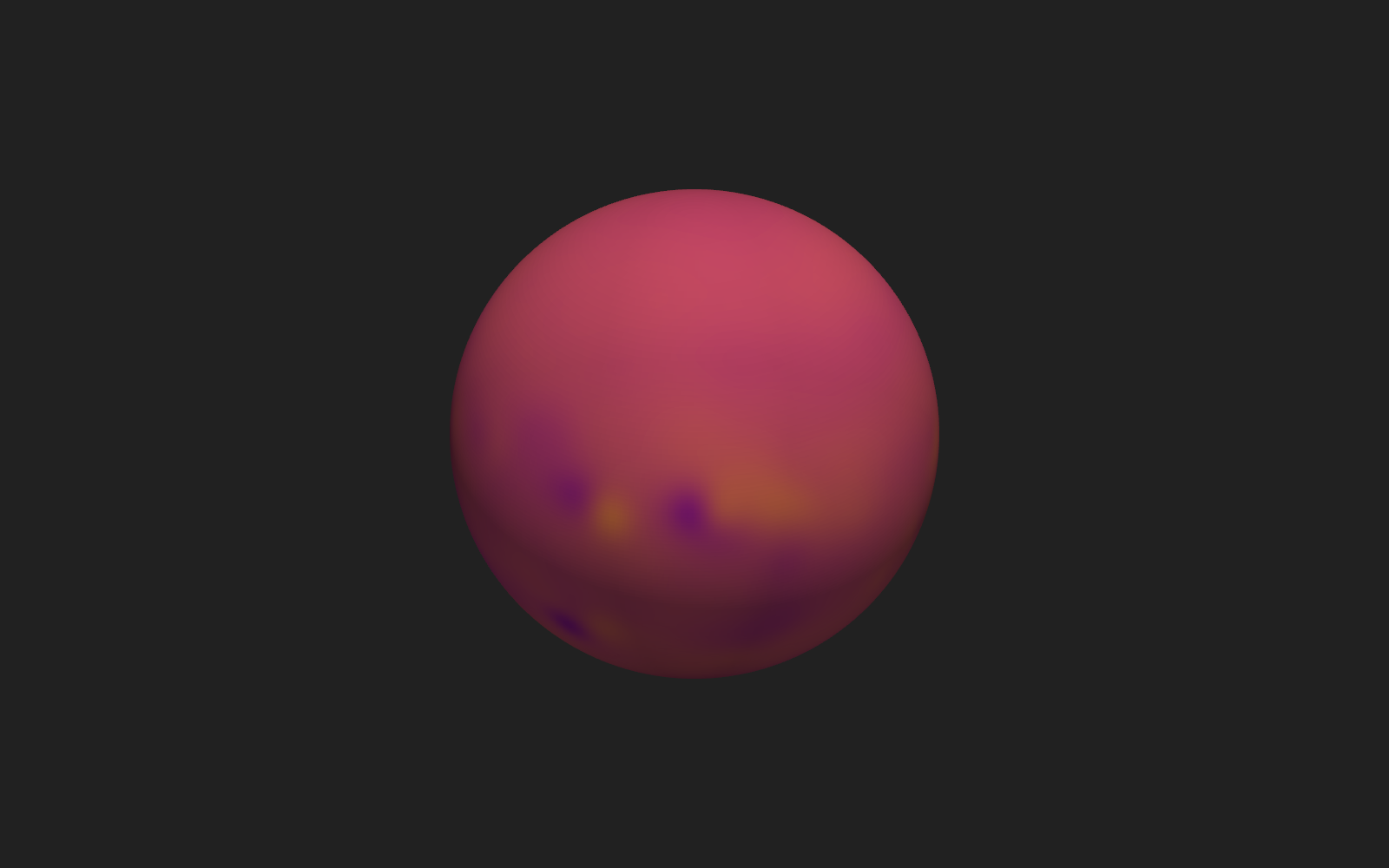
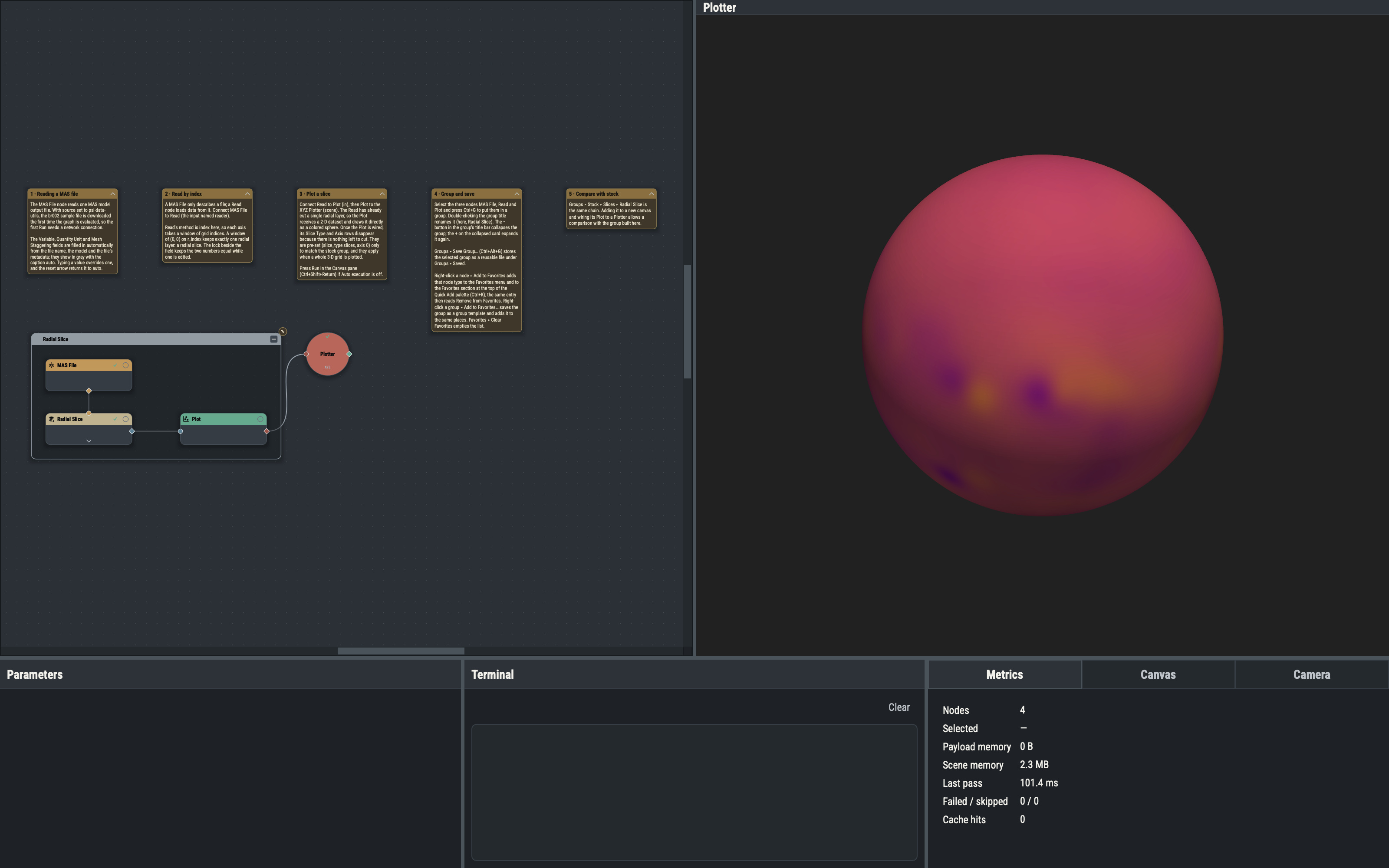
A Read with a one-index window has already cut a layer, so the Plot receives a 2-D dataset and draws it directly as a surface; its Slice Type and Axis rows disappear once it is wired. They are pre-set (slice_type: slices, axis: 0) only to match the stock group, and they apply when a whole 3-D grid is plotted, where axis 0, 1 or 2 picks the cut along r, theta or phi.
Groups
A group is a box around nodes (select them, Ctrl+G). It can be renamed, collapsed to a single card with the − button in its title bar (the + on the collapsed card expands it), and nested inside another group (example 3.3).
Saving a group versus saving a template
Groups ▸ Save Group… (Ctrl+Alt+G) stores one group as a .pyvt file that can be added to any session from Groups ▸ Saved. File ▸ Save as Template… stores a whole session as a starting point under File ▸ New from Template ▸ Saved.
Favorites
Right-click a node ▸ Add to Favorites adds the node type to the Favorites menu and to the Favorites section of the Quick Add palette; the entry then reads Remove from Favorites. Right-click a group ▸ Add to Favorites… saves the group as a group template and favorites it. Favorites ▸ Clear Favorites empties the list.
Stock groups
Groups ▸ Stock holds ready-made groups. Slices ▸ Radial Slice is the chain built in this example.
Variations
- Setting
r_indexto (10, 10) cuts a layer farther from the Sun. - Setting
cmapto bwr changes the colormap; enablingshow_scalar_baradds a color bar.
Example 1.3 slices along theta and phi and scales the result.