 PVA
Concepts
The vocabulary of PVA on one page. Each section links to the Guide chapter that covers it in full.
Node
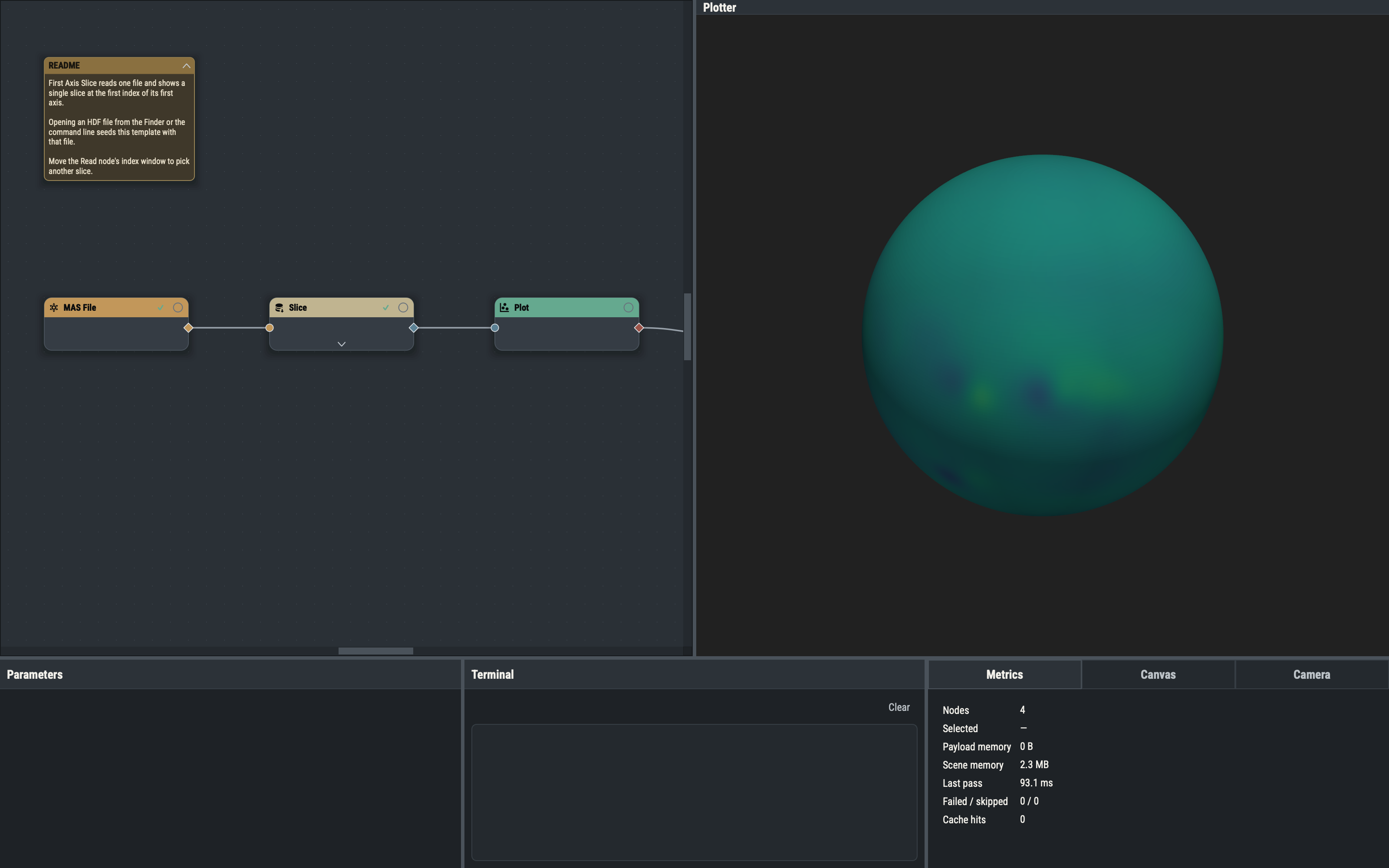
A node is one operation: read a file, cut a slice, trace field lines, draw a mesh. Nodes are cards on the canvas, connected into a graph. Data flows from a node's output into the inputs of the next node.
- Title band. Its color is the node's family; the icon and title name the node. You can rename the title.
- Status badge. Shows whether the node is clean, dirty, pending, evaluating or in error.
- Input ports on the left and the output port on the right, by default.
- Cache override. A ring that sets whether the node keeps its result between passes.
- Toggle strip. The chevron expands the node to show the data it produced.
See Nodes.
Families
Every node type belongs to one of seven families, shown by its title band color.
- primitives: Raw building blocks: numbers, arrays, date-times, ranges.
- datasets: Dataset constructors and generated shapes: grids, stacks, spheres, planes, synthetic fields.
- generators: Lazy handles to an engine: file readers, the field-line tracer, spacecraft sources.
- materializers: Pull data out of a generator on demand: Read and the Trace nodes.
- functions: Compute: math, calculus, conditionals, dataset editing, mesh filters, queries.
- leaves: Terminals that draw or write: Plot, Camera, and the exporters.
- plotter: The 3-D viewports and the holders that capture picks and camera moves.
Ports
Ports are the dots on a card's edges. Inputs are circles, on the left by default; outputs are diamonds, on the right. A port's color is the currency of the data it carries.
- Input. Accepts a connection that matches its kinds.
- Output. Offers the node's result.
- Optional input. A hollow circle with an inner ring; the node runs without it. Ports added from the Parameters pane (⊕) drive their parameter while connected. Some optional inputs are quiet: they stay off the card until relevant, connected or shown from the Parameters pane's Optional ports.
- Component dots. Small diamonds on an expanded node; each hands out one component of its data, such as a scale or a value array.
- Events. A Plotter's
eventsoutput dot connects to a Pick Point, Pick Mesh or Track Camera holder.
Parameter ports appear when you add them from the Parameters pane (⊕); quiet optional ports appear when relevant, when connected or when shown there. See Parameter Pane.
Kinds and currencies
Each port declares the kinds it accepts, and a connection is allowed only when kinds match. A kind has a currency and, for datasets, a shape: dataset(grid), dataset(stack), dataset(mesh), dataset(surface), dataset(volume).
- primitive: Numbers, arrays, times: plain values.
- dataset: Structured data: grid, stack, mesh, surface or volume, with values attached.
- generator: A lazy engine handle (reader, tracer, spacecraft); nothing is read until a Materializer asks.
- render: What a Plotter draws: actors and camera settings.
Edges
An edge is a line from an output to an input. Drag from a dot and release over a compatible dot to connect; releasing on empty canvas cancels. Right-clicking an output or component dot opens the acceptor menu, which lists the node types that can accept it. Edges are drawn curved, angled or straight. See Connecting nodes.
Graph and canvas
The canvas is a pan-and-zoom surface with a dot grid. Add nodes from the Nodes menu, the right-click menu or the Quick Add palette (CtrlK), then connect and arrange them. Every edit is undoable. Copy (CtrlD) duplicates the selection; Delete removes it with no confirmation, and undo brings it back. Notes float freely or attach to a node or group. See The Canvas.
Groups, templates and sessions
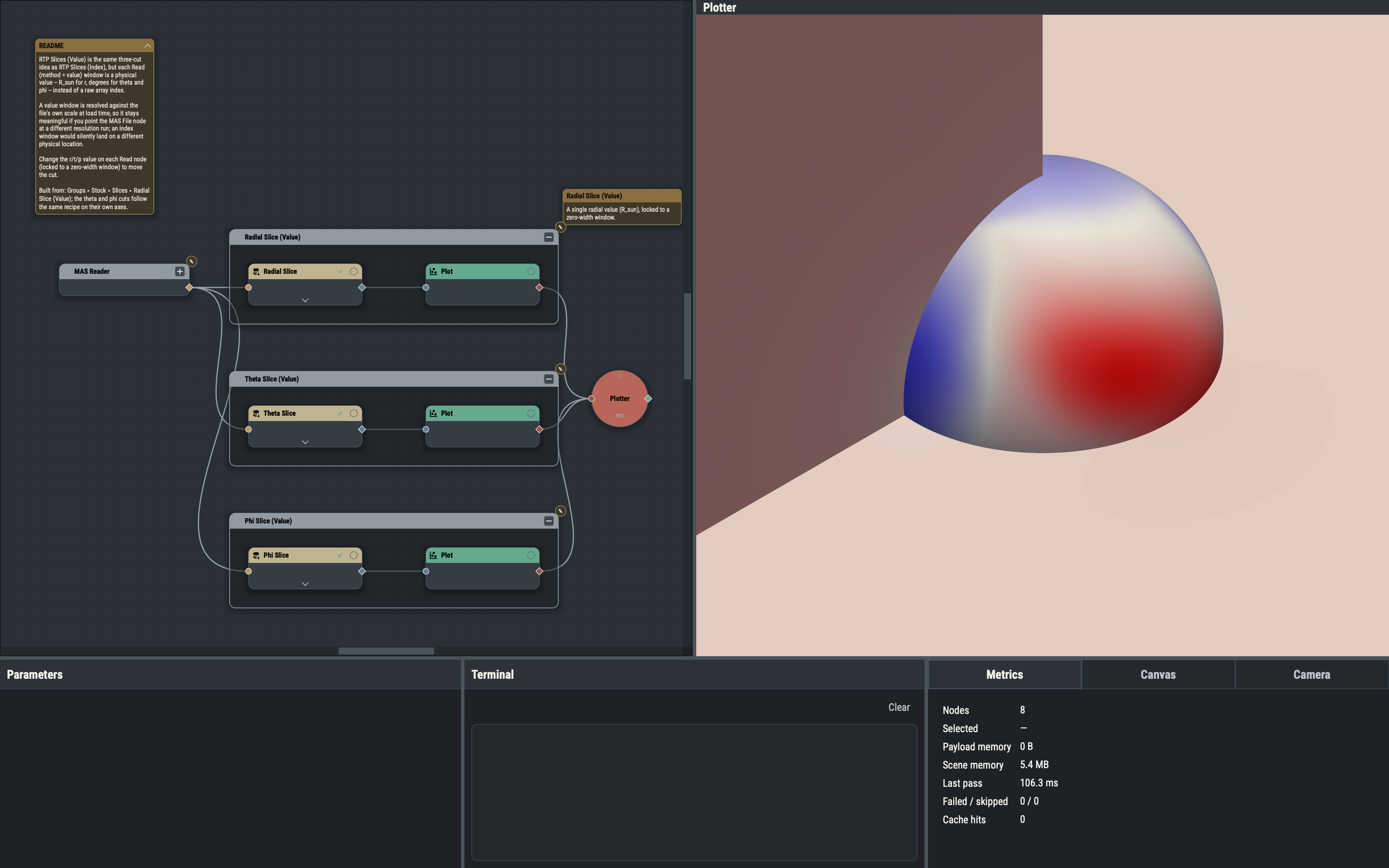
A node is the atomic element. A group is a small, reproducible combination of nodes, such as a reader with its slices, that you use as one building block inside a larger graph (CtrlG); saved as a group template (a .pyvt file) it can be dropped into any session. A template is a complete data pipeline that does one dedicated task, in effect an app within PVA; File ▸ New from Template starts a fresh session from one. A session is the document that holds all of it: the whole working state saved as a .pyv file. The Templates page shows every stock template and group. See Groups, Templates and Sessions.
Plotter and viewports
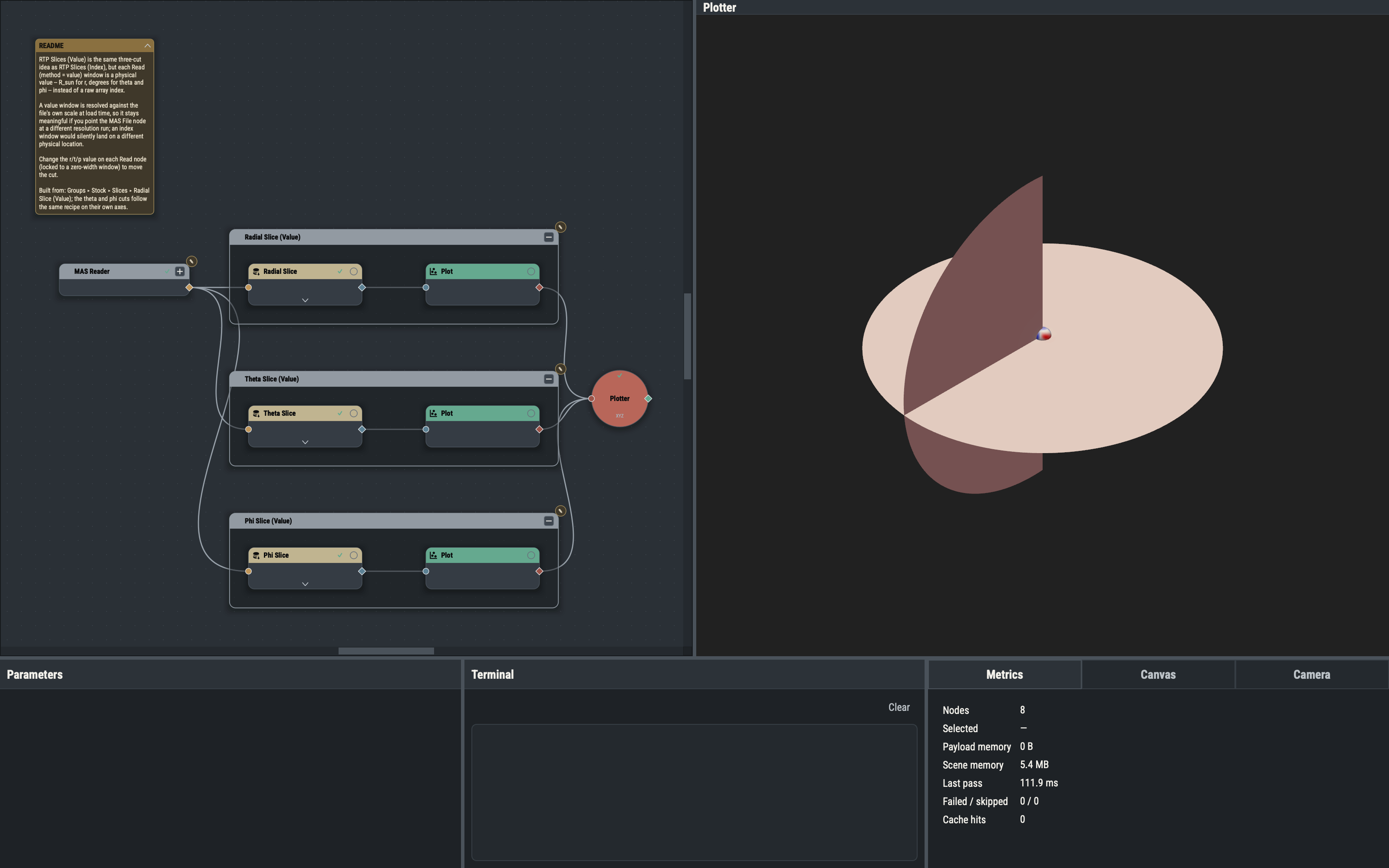
A Plotter node owns a 3-D viewport and is drawn as a circle; its scene input collects everything to draw. There are two types.
- XYZ Plotter converts positions given as (r, θ, φ) to Cartesian space. It is the usual choice for solar scenes.
- RTP Plotter draws (r, θ, φ) values directly as x, y and z, with no conversion.
One Plotter is the main one; Set as Main Plotter in the Actions menu changes which. Further Plotters open as extra viewport tabs that can float. Picking holders and the Camera pane attach to a Plotter. See The Plotter, Viewports and Interactivity.
Panes
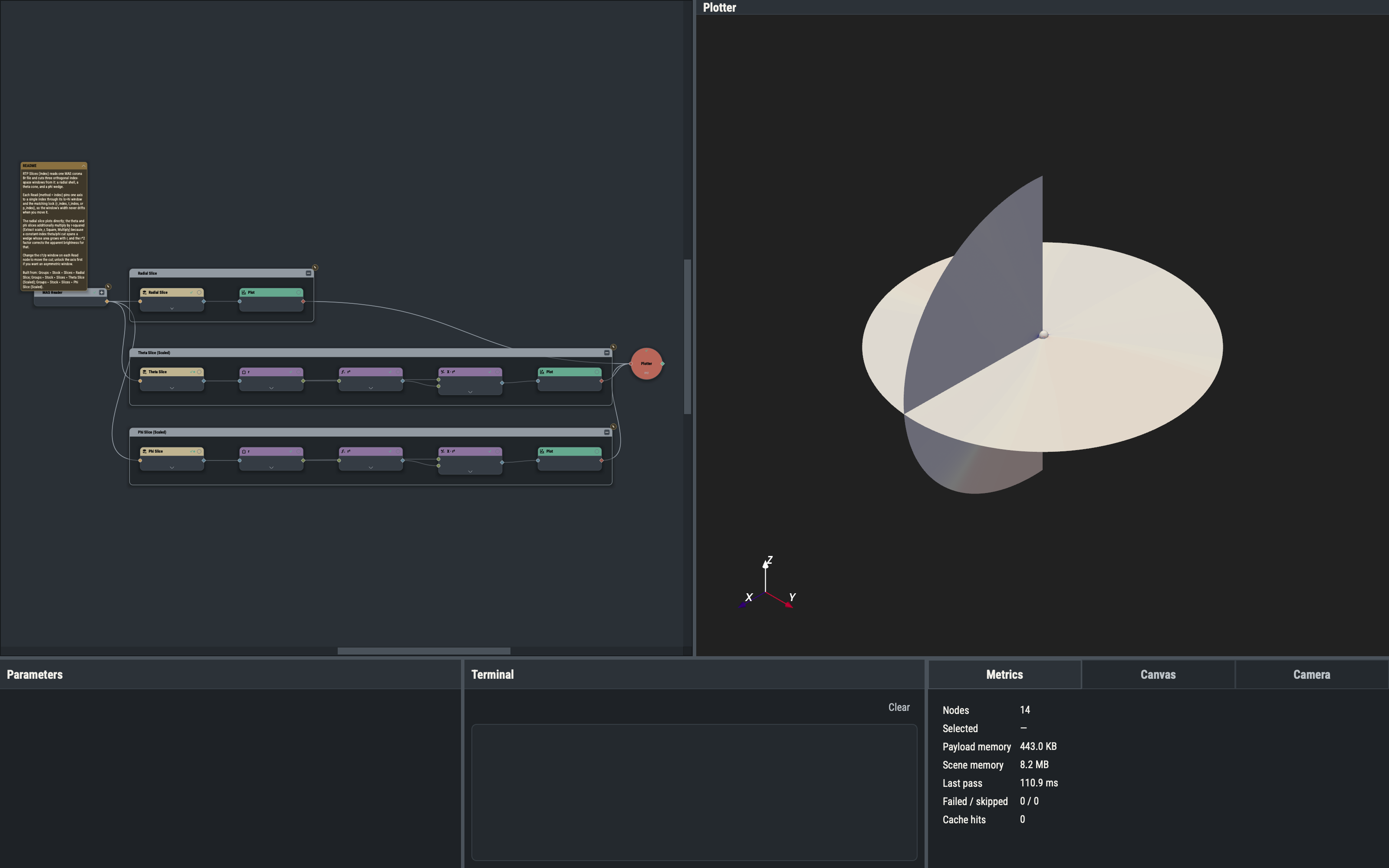
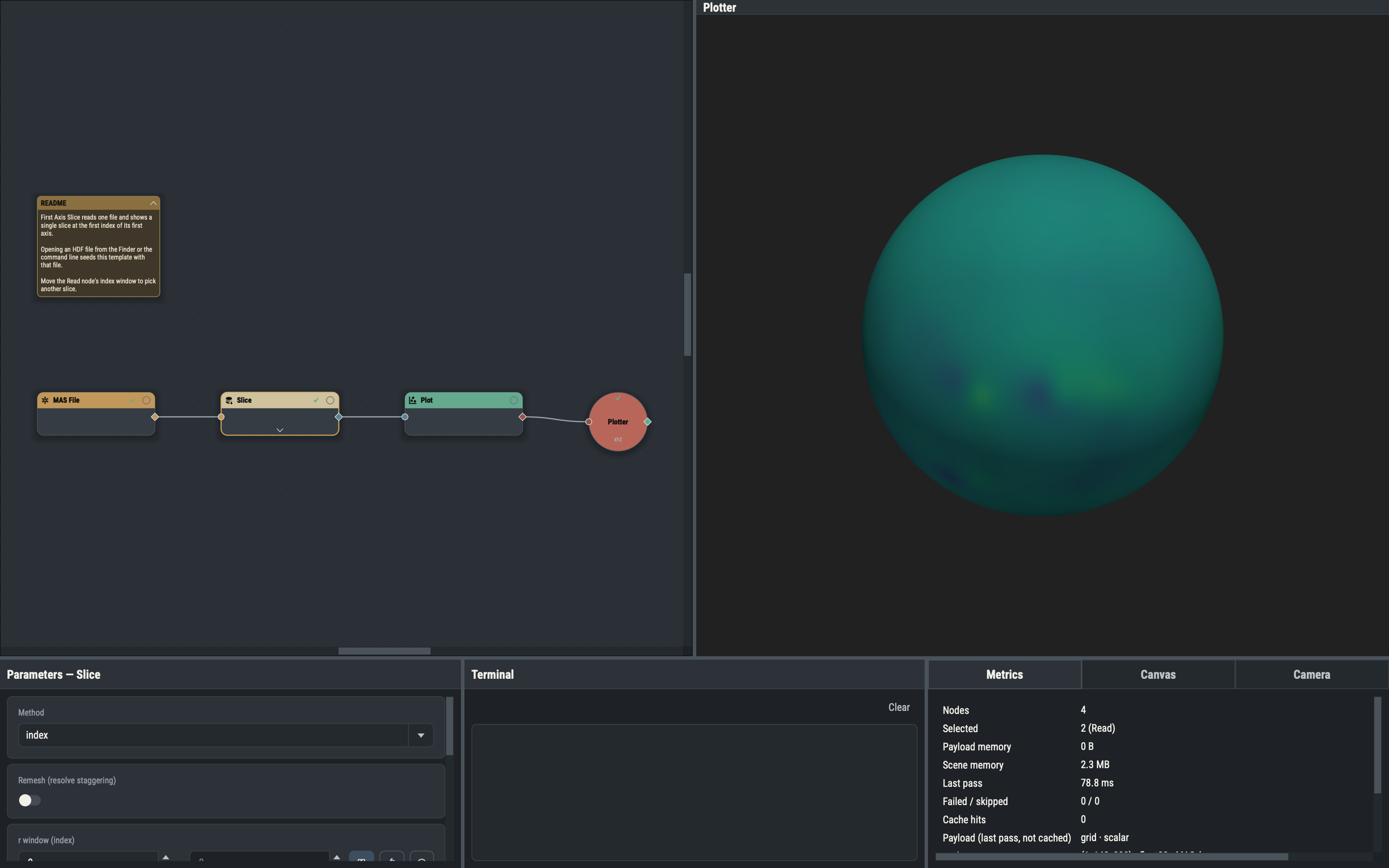
Five dockable panes sit below the canvas and viewport: Parameters (edit the selected node), Terminal (messages, warnings, errors), Metrics (sizes, timings and files in use), Canvas (view and selection actions) and Camera (position, focus, views). Drag, float or close them by their title bars; the View menu brings any pane forward. See 1AU View, then Parameter Pane, Terminal Pane, Metrics Pane, Canvas Pane and Camera Pane.
Run, Evaluate and Auto
Editing a parameter marks that node and everything downstream dirty. Evaluate computes the selected nodes; Run evaluates everything stale; Auto execution reruns the changed parts as you edit and is on at launch. Evaluation runs on a background worker, so the window stays responsive, and a slow node logs a warning in the Terminal. See Running the graph.
Cache
A node can keep its result in memory so later passes reuse it. The ring on the card sets the policy, and a rule decides which nodes are cached automatically. See Caching.
Favorites
Star node types and group templates to collect them in the Favorites menu and at the top of the Quick Add palette. See Favorites.
Camera and views
The Camera pane sets position and focus, the line-of-sight and field-of-view modes, and the solar-north orientation. Save any pose as a named view and recall it by name or with the digit keys 1 to 9. See Camera Pane.
Animations and drivers
An animation sweeps one or more parameters, each through a driver (a range, a fixed step or a list), and renders each frame to a movie, a folder of images or both. Render from the Animate editor or headless from the command line. See Animations and Headless Rendering.
Macros
In Macro Mode, keys and the mouse wheel change chosen parameters while you watch the viewport. See Macros.