 PVA
Example 2.2: Launch Points
Choose where field lines start by wiring a dataset into the optional `lps` port.
Shortcuts are written Ctrl+…; macOS shows ⌘.
Goal
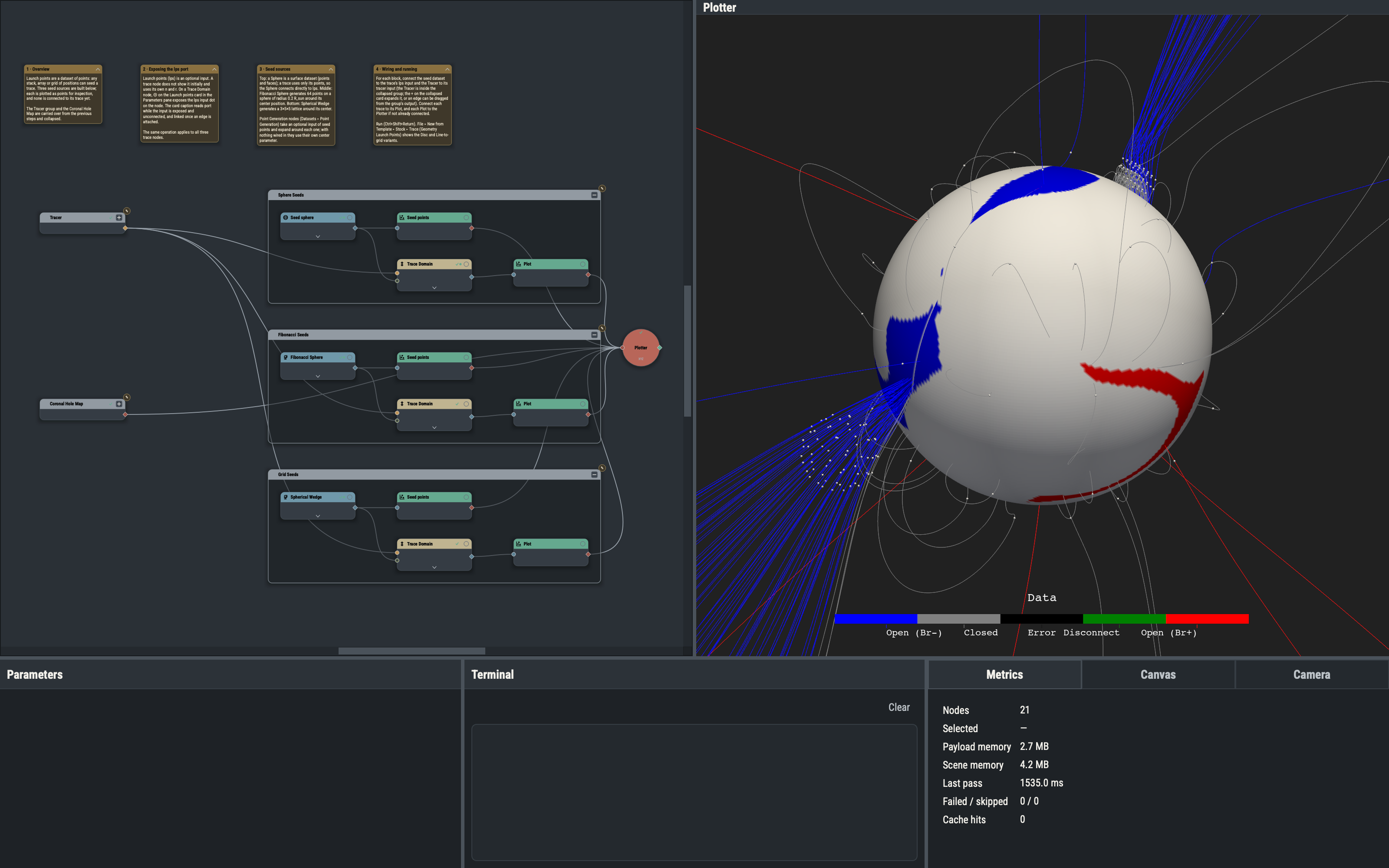
Choose where field lines start by wiring a dataset into the optional lps port.
Optional ports and ⊕
Some inputs are optional and are hidden until requested. On a parameter card, ⊕ exposes the matching port on the node (⊖ removes it), ⌖ picks a value from the viewport (position rows only), and ↺ clears an entered value so that it reverts to the derived default (“Reset to auto”). A caption shows the source of the value: auto (the field is blank and shows a value derived from the inputs), port (the port is exposed but nothing is attached) and linked (an edge supplies it). While lps is linked, the trace ignores its own n and r.
Surface versus stack datasets
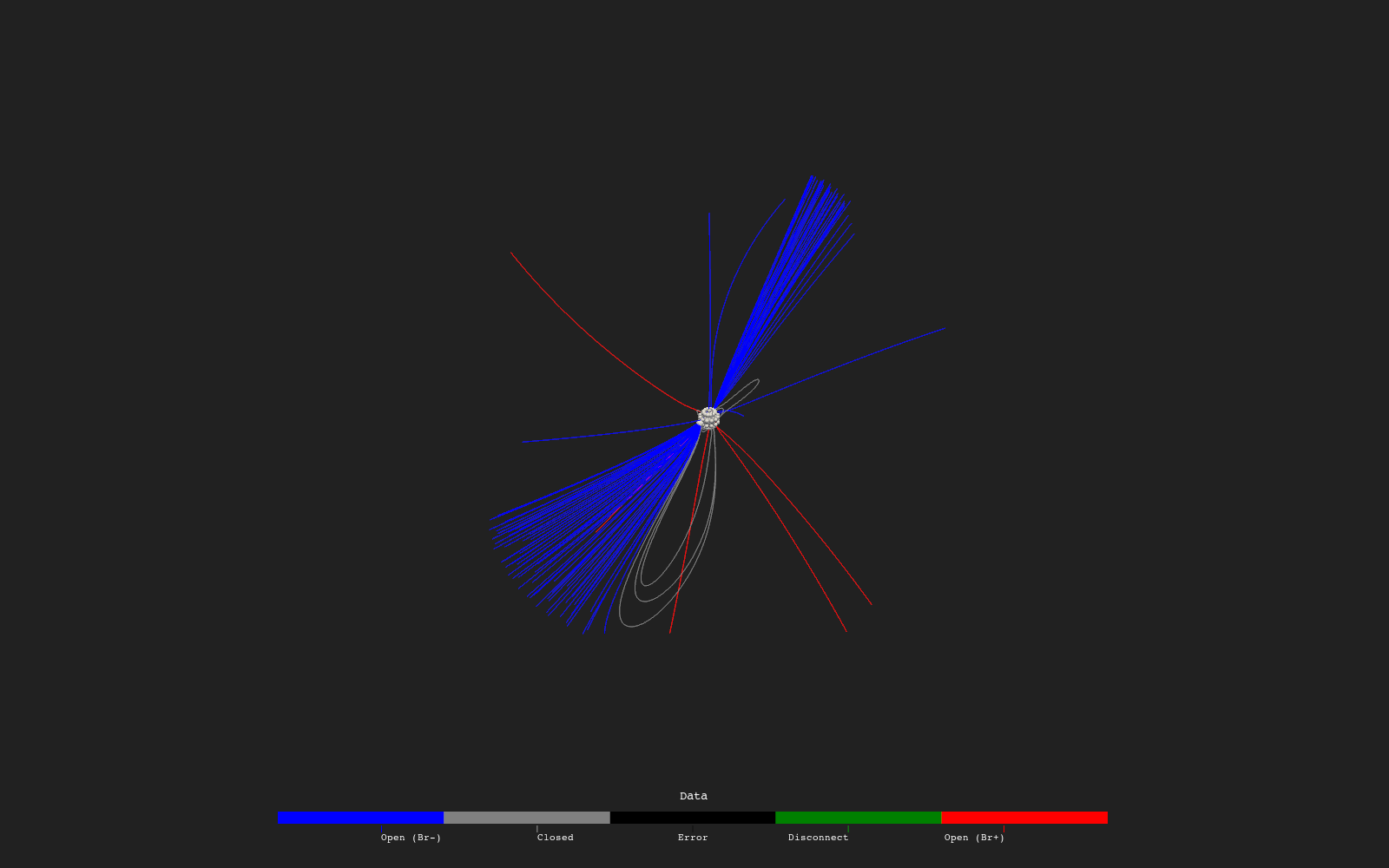
A surface dataset such as a Sphere has points and faces. A stack dataset is a list of points. A trace uses only the points of whatever it is given, so a Sphere can be wired straight into lps.
Point Generation nodes
Datasets ▸ Point Generation creates points around a center. Fibonacci Sphere places n points (32 by default) on a sphere of radius radius (Sphere Radius, 0.05 R_sun by default); Spherical Wedge places an nr × nt × np lattice (3 × 3 × 3 by default) with widths dr, dt, dp. Cartesian Grid is the Cartesian counterpart, with nx/ny/nz and dx/dy/dz. The center is a position shown by default in the spherical frame (r in R_sun, θ and φ in radians). The frame combo on the row (Cartesian, Spherical, Longitude-Latitude; XYZ, RTP, LatLon) changes only how the value is displayed, and each unit label offers its own unit choices. If an input is wired in, the lattice is repeated around each input point.
Other seed sources
The stock template Trace (Geometry Launch Points) builds seeds from a Disc and from a Line expanded into a Spherical Wedge or Cartesian Grid. A Geometry File node or a Table CSV, Table DAT or Table HDF reader can also supply points read from a file, and a spacecraft trajectory can serve as a seed source. Example 2.3 and example 2.4 seed from clicks in the viewport, and example 3.3 seeds from a spacecraft trajectory.
From Mesh (Functions ▸ Mesh Filters ▸ Convert ▸ From Mesh) is the bridge for Mesh Filter output: after a filter such as Clip Plane or Contour it converts the result back into an ordinary dataset usable as a seed source.
Variations
A Pick Point holder (Nodes menu ▸ Plotter ▸ Events) wired to lps traces from a point clicked in the viewport. File ▸ New from Template ▸ Stock ▸ Click to Trace is a finished example.
Example 2.3 traces from points clicked in the 3-D view.