 PVA
Example 2.3: Click to Trace
Right-click a gray shell around the Sun to place a point there, keep a growing set of those clicks with an Accumulator, and trace a field line from each of them.
The solved session keeps its picked data in click-to-trace-solved.data. Save these files in a folder named click-to-trace-solved.data beside the solved .pyv file.
Shortcuts are written Ctrl+…; macOS shows ⌘.
Goal
Right-click a gray shell around the Sun to place a point there, keep a growing set of those clicks with an Accumulator, and trace a field line from each of them.
Event ports versus data ports
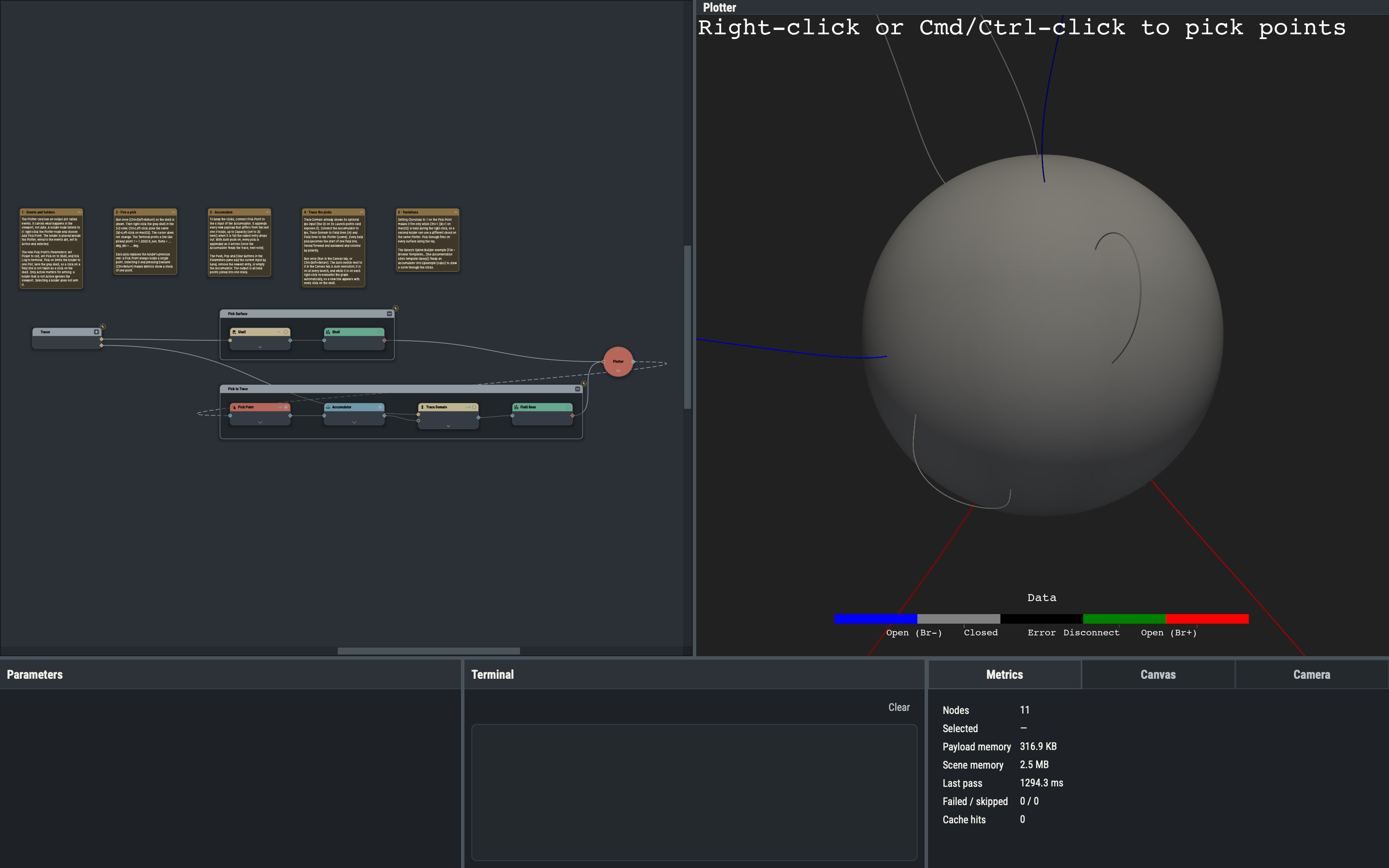
Most dots in PVA carry data: a dataset, an array or a number. The Plotter also has one output dot called events that carries what happens in its viewport: picks and camera moves. Nothing reads it until a holder node is attached: Pick Point, Pick Mesh or Track Camera. The Plotter node’s right-click menu entries Add Pick Point, Add Pick Mesh and Add Track Camera place a holder beside it, already wired and Active. The same holders are under Nodes ▸ Plotter ▸ Events, and dragging from the events dot onto a holder’s event port connects it as well (a hand-wired holder is also set Active).
A holder listens only while its Active option is ticked. Selecting a holder does not arm it. Arming a holder deactivates the active holders of the other kind on the same Plotter and chord, so a Pick Point and a Pick Mesh do not both fire on one click.
How a pick fires
A pick fires on a right-click in the 3-D view while the holder is Active. Ctrl+Left-click does the same (⌘+Left-click on macOS). The cursor does not change, so the result is checked instead: with Log to terminal ticked, the Terminal prints picked point: r = ... R_sun, theta = ... deg, phi = ... deg.
The holder’s output is a stack dataset of one point, in R_sun and radians, with an integer hit array that is 0 for the nearest hit. Every firing replaces the previous payload: a Pick Point remembers only its last pick. With Chord key none (the default) a plain right-click fires the holder. A Chord key from 1 to 9 restricts the holder to picks made while Ctrl+digit (⌘+digit on macOS) is held during the right-click, so several holders can share a Plotter. A digit is recorded as a chord only while Ctrl (⌘) is held, so chords do not conflict with the bare 1 to 9 keys, which recall saved camera views in a viewport.
Pick Point options
- Picker chooses how a click becomes a point:
point(the default) snaps to the nearest vertex of the mesh,celltakes the exact position on the surface cell under the cursor, andhardwarereads the rendered depth.cellallows a click anywhere on the shell. - Tolerance (default 0.025) is how close, as a fraction of the window, a click must be to count as a hit. Tolerance and Pick through are hidden for
hardware, which ignores the tolerance and has no multi-hit mode. - Show marker draws a marker at the picked point (Marker size and Marker color are shown while it is ticked). It is off here because the field lines show where each pick was made.
- Pick empty space lets a click that hits nothing still fire.
- Pick on limits the pick to one Plot (
anydoes not filter); here it names the gray shell, so a click that lands on a field line is ignored. Pick through returns every surface along the ray instead of only the nearest, ordered nearest first by thehitarray. - Log to terminal prints each pick.
The Accumulator
Pick Point holds one point; the Accumulator (Nodes ▸ Datasets ▸ Accumulator) holds many. It has one input, x, which accepts a stack, a surface, an array or a number.
- Capacity (default 5) is the largest number of entries it keeps. It is a first-in, first-out buffer: when full, the oldest entry drops out.
- Auto push (on by default) appends each new payload from
x, unless it equals the entry held last: re-running with an unchanged pick adds nothing. - Push, Pop and Clear are buttons in the Parameters pane: Push appends the current input by hand, Pop removes the newest entry, Clear empties it. After a Pop the same input is not pushed straight back.
- The output is all held entries concatenated into one stack, so a trace or a Plot downstream sees every click. Mixing kinds (a stack and an array, say) is an error: Clear first.
- The entries survive saving: the session stores them in a
.datafolder beside the.pyvfile (hereclick-to-trace-solved.data, with one.npzfile per node that holds state, including the Pick Point). The folder must stay next to the session file when the session is moved or shared.
An empty Accumulator reports an error until something has been pushed.
Auto execution for live interaction
A pick changes the holder’s output, which makes everything downstream stale. With Auto execution on (the Auto switch in the Canvas tab, on at every launch), PVA re-evaluates automatically after each pick, so a new field line appears as each click is made. With it off, Run (Ctrl+Shift+Return) is pressed after clicking.
Launch points from picks
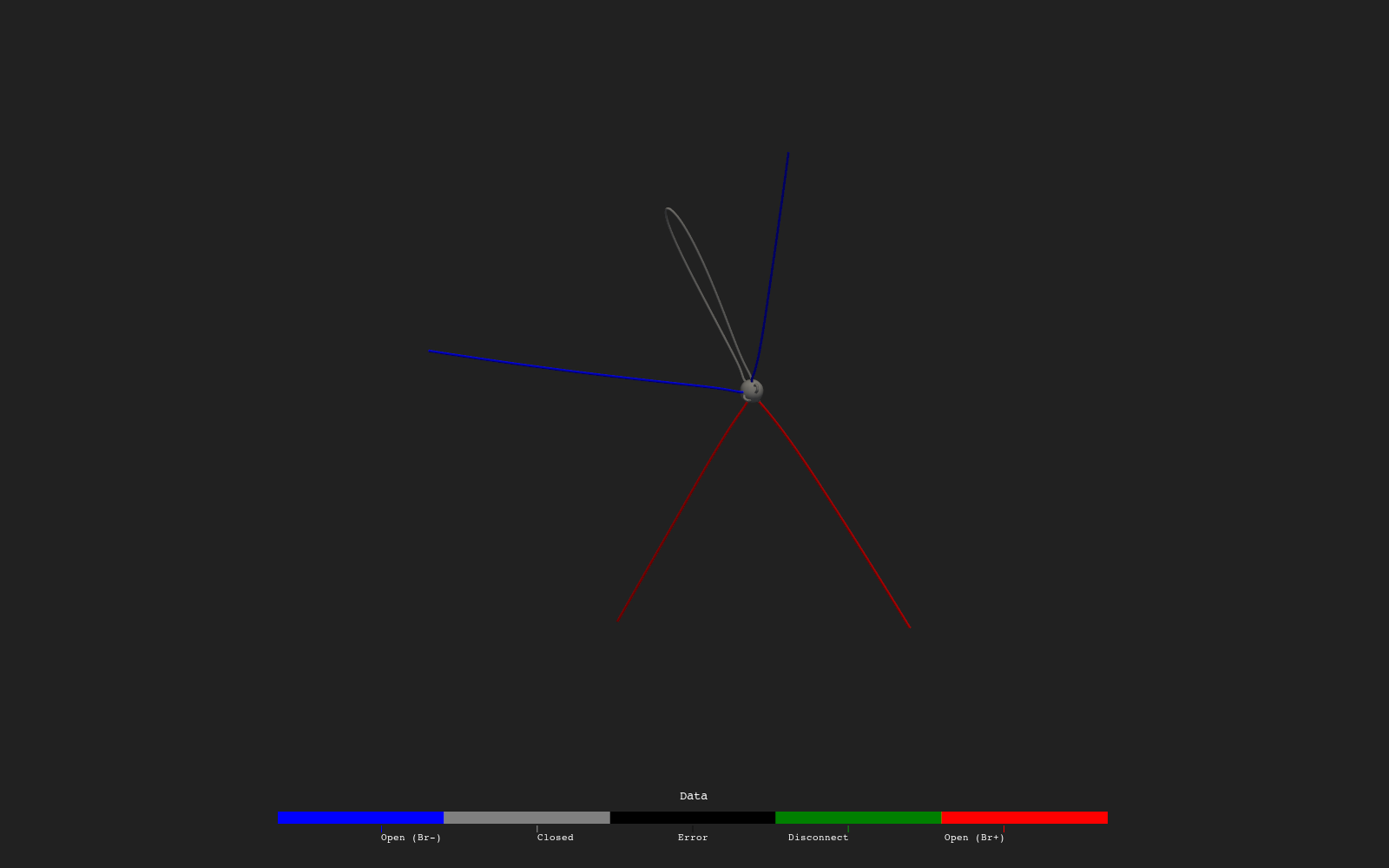
The Accumulator’s output is a stack of points, so it can be wired into the optional lps port of Trace Domain exactly as the Fibonacci Sphere was in example 2.2. Every held pick launches one line, traced both ways and colored by polarity. The shell is a radial layer of the br file read with Read (r_index 30 to 30, about 1.015 R_sun) and drawn solid gray. It lies just above the 0.01 R_sun boundary tolerance of the trace: a launch point inside that tolerance of the inner boundary counts as already at the boundary, and its line stops at once. The solved session ships eight picks, so that a headless render shows lines of each polarity: blue lines are open with negative Br, red lines open with positive Br, gray lines closed.
Variations
- Setting Chord key to 1 on the Pick Point makes it fire only on a right-click made while Ctrl+1 (⌘+1 on macOS) is held; a plain right-click then does nothing.
- Setting Picker to
pointsnaps each click to the nearest vertex of the shell. Setting Capacity to 3 keeps only the three newest clicks, so the oldest points drop out after the fourth. - A Pick Mesh holder (Add Pick Mesh on the Plotter’s right-click menu) returns every point of the picked mesh instead of a single point.
- The Spline Builder template in the library (File ▸ Browse Templates…) wires an Accumulator into Upsample (cubic), so the clicks become a smooth curve.
Example 2.4 picks a whole field line instead of a point.