 PVA
Guide / Chapter 17
Animations
An animation steps node parameters through a sequence of values and renders one image per step, from a Plotter’s own renderer rather than from the screen, so overlapping windows do not matter. The Animate editor is under File ▸ Export ▸ Animate…; stills, web pages and data files are covered in Exporting.
Concepts
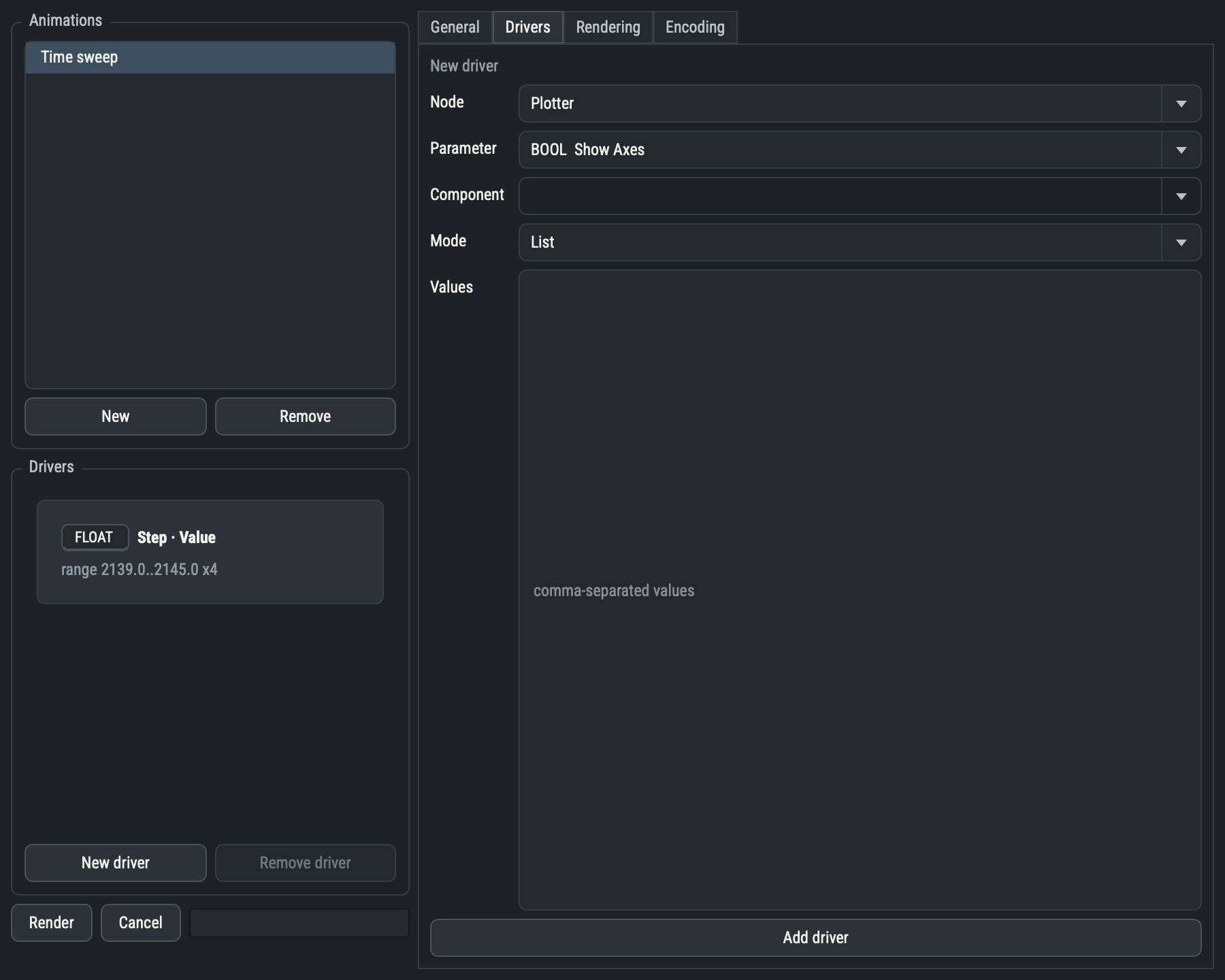
- An animation is a named record stored in the session. It owns a list of drivers, a combine mode, a target Plotter and the render and encoding settings. An animation with no drivers is valid, but Preview and Render need at least one.
- A driver targets one parameter of one node (or one component of a vector parameter) and produces a list of values: a range, a start-plus-delta progression or an explicit list. It writes one value to the parameter per frame.
- A frame is one combination of driver values; the frame count depends on the combine mode.
- Rendering never touches your live session. PVA saves a temporary snapshot, runs a headless child process on it and streams progress back, so the canvas stays interactive and later edits do not affect the render. The render pipeline itself, workers, memory and camera order, is described in Headless Rendering.
- Preview writes one frame’s values into the live session, so the canvas and viewport show exactly what that frame renders.
Choose File ▸ Export ▸ Animate… (CtrlShiftA) to open the Animate editor, a single non-modal window with General, Drivers, Rendering and Encoding tabs. Removing a node removes every driver that targets it; the animation stays. Remove (for an animation) and Remove driver are two-step buttons: the first press arms the button, and a second press while it is armed removes; moving the focus away disarms it. The General, Rendering and Encoding tabs save each edit as you make it, while the Drivers tab is a form that you submit with Add driver or Update driver.
General tab
The General tab holds the animation’s Name (unique; it selects the animation for headless rendering and names the default movie), its Plotter (Main follows the graph’s main Plotter), Combine, Output path and a read-only frame count. A blank output path means <animation name>.mp4 in the screenshots folder. An edit that fails validation, such as a duplicate name or an out-of-bounds range, is refused with a message and the animation is unchanged.
Preview takes a frame number and Apply frame, which writes that frame’s driver values into the live session and requests an evaluation pass. The write is one undo step, repeated previews merge into it, and a Camera node connected to the Plotter is re-applied so camera-driven animations preview correctly.
Drivers tab
A driver is built from a Node, a Parameter, a Component (for vector parameters, one driver per component) and a Mode. Parameters fed by a connected port, and kinds with no driver mode such as text, path and color, cannot be driven. Out-of-bounds values are refused, never clamped. Which modes each parameter kind supports:
| Parameter kind | Range | Delta | List |
|---|---|---|---|
| Integer, float, vector component, integer vector component, date-time | yes | yes | yes |
| Integer window, float window | yes | yes | yes |
| Choice | no | yes | yes |
| Boolean, numeric choice | no | no | yes |
- Range moves from a start to a stop value. Integer, integer vector component and integer-window drivers take a Stride (the distance between values); float, float vector, date-time and float-window drivers take Steps (the total frame count, endpoints included). Start must be less than Stop. Full range fills the declared minimum and maximum for integers and sweeps the whole axis for integer windows.
- Delta starts at a value and adds a fixed increment per frame for Count frames, which may be negative but not zero (a whole number for integers and integer vector components). Date-time deltas are entered in seconds, minutes, hours or days, and a choice delta walks the choice list that many entries per frame, refusing a walk past either end.
- List takes explicit comma-separated values: numbers, ISO-8601 date-times, choice values, booleans (
1,true,yesoronmean on) orlo:hipairs for windows.
Window drivers move a lo-hi pair. When the start and stop lo differ, lo steps by the stride and hi follows the same fraction of its travel, so a fixed-width window stays fixed-width. When the two lo values are equal, lo stays and hi alone steps, so the window grows or shrinks from a fixed edge. A width-locked parameter needs equal widths, and the parameter re-validates every window rather than reordering it.
Combine
Combine turns several drivers into one frame sequence; with one driver the modes are identical. Values are always applied in driver order.
| Mode | Frames | Behavior |
|---|---|---|
| Nested | Product of the driver lengths | Every combination; the first driver is the outermost loop and varies slowest. |
| Zipped | The common length | Drivers advance together; a length mismatch is refused. |
| Sequential | Sum of the driver lengths | Each driver runs in turn while earlier ones hold their last values and later ones their first. |
Rendering tab
Size is width by height, both positive and even because the encoders reject odd sizes. It defaults to the live viewport when the animation is created. FPS (1 to 240) sets the movie rate without changing which frames render.
Camera chooses the camera for the render. Live viewport captures the target Plotter’s pose when you press Render and holds it for every frame. A saved camera view (see Saved camera views) renders from the stored pose and letterbox; the animation stores its name, so the session stays portable, and a missing name falls back to the live viewport with a warning. An active Camera node connected to the Plotter overrides the choice, and Headless Rendering gives the full order. To animate the camera itself, add drivers on a Camera node’s parameters.
Encoding tab
The Codec decides the quality control: a bitrate in Mbit/s for libopenh264 (the default), or a CRF or q:v value from 0 to 63 for the others. Pixel format is yuv420p, yuv444p or rgb24; libopenh264 encodes only yuv420p. Extra ffmpeg args are inserted just before the output path. Every frame is padded to an even width and height, so a letterboxed view at an odd width does not break the encoder.
| Codec | Quality | Notes |
|---|---|---|
libopenh264 | Bitrate | Default; H.264 in the bundled ffmpeg, yuv420p only. |
libvpx-vp9 | CRF | VP9 constant-quality. |
libsvtav1 | CRF | AV1. |
prores_ks | q:v | ProRes; use a .mov output path. |
mpeg4 | q:v | MPEG-4 part 2. |
libx264, libx265 (external ffmpeg) | CRF | Not in the bundled ffmpeg; set ffmpeg path to a build that has them. |
Output choices
| Choice | Result |
|---|---|
Movie | Frames render to a scratch folder, are assembled into the movie and the folder is deleted. |
Movie and frames | The movie is assembled and the PNG frames are kept in <movie stem>-frames beside it. |
Frames only | No movie is assembled and ffmpeg is never looked up; the frames are kept and the codec rows are grayed. |
Kept frames are named frame-00000.png and so on. A render clears old frame-*.png files in a kept-frames folder before writing and leaves other files alone. A render that fails after the frames are done, for example because ffmpeg is missing, keeps them and names the folder in its error.
ffmpeg lookup
PVA assembles a movie with the first ffmpeg it finds, in this order:
- ffmpeg path in Settings ▸ Defaults ▸ Capture (
capture.ffmpeg), when not blank. - The ffmpeg bundled inside the installed app.
- The ffmpeg from the
imageio-ffmpegpackage, when running from a Python environment. - Whatever
ffmpegis onPATH.
If none is found, the render fails with ffmpeg not found (set the capture.ffmpeg setting or install ffmpeg on PATH) and keeps the rendered frames. Because the bundled ffmpeg comes before PATH, installing a system ffmpeg does not by itself enable libx264 in the installed app; set ffmpeg path to it.
Running a render
Render checks that the animation has a driver and a Plotter with a live viewport, validates it, records the chosen camera pose, saves a temporary snapshot and starts the headless child. Progress drives the bar and the ETA, which scales the elapsed time by the fraction of frames outstanding. One render runs at a time. Cancel asks the child to terminate and kills it after five seconds; it deletes the partial frames unless the animation keeps its frames. The snapshot is deleted when the child exits, and a failure is a Terminal error. The worker count follows Animation render workers (capture.jobs) and available memory (see Parallel rendering).
Animations are saved in the session under an animations list (see Sessions). A hand-written .pyv can define them too, and the same validation applies on load.