 PVA
Guide / Chapter 10
Canvas Pane
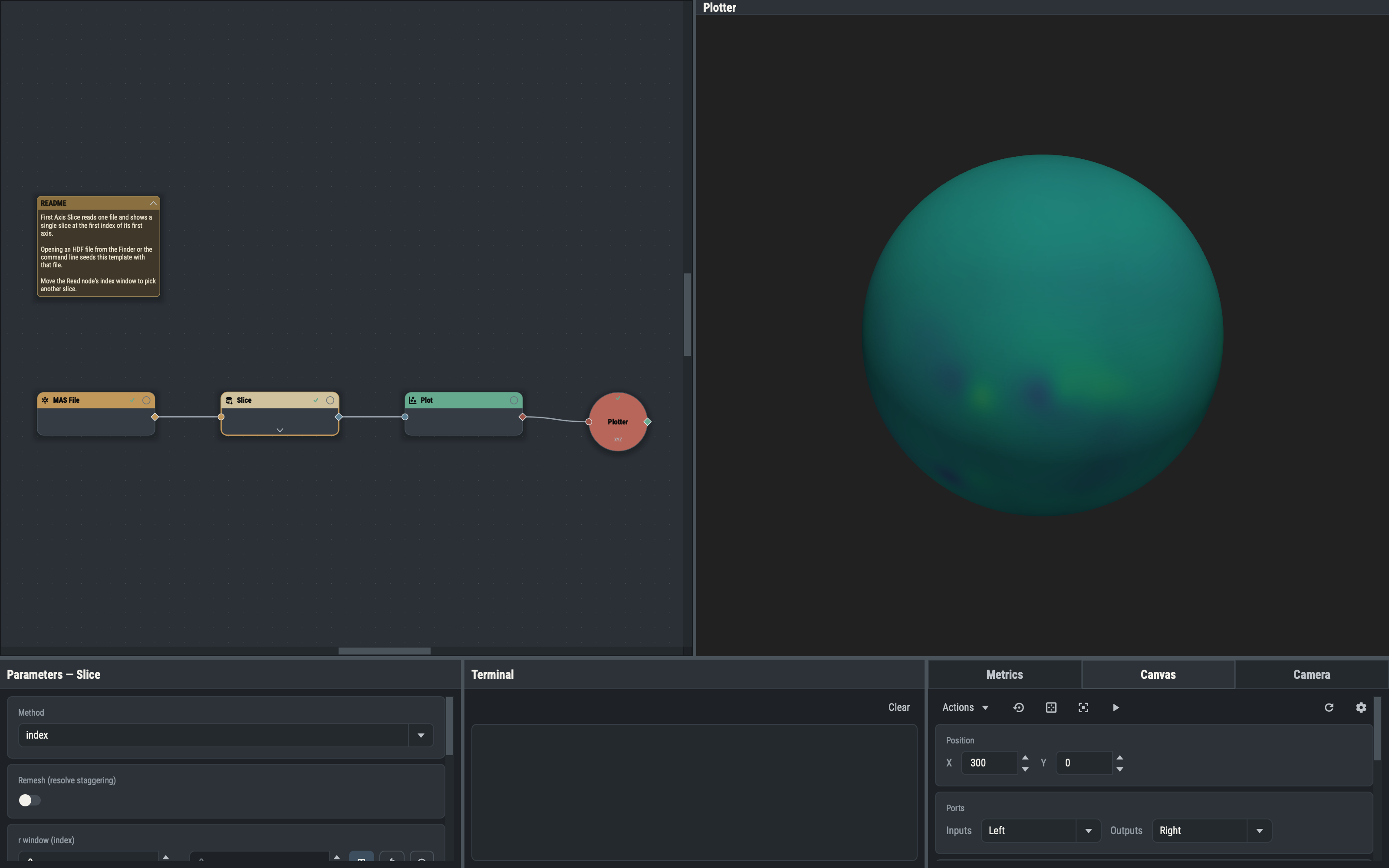
The Canvas pane gathers the canvas controls. A flat toolbar across the top holds the Actions dropdown and the view and run buttons, and boxed cards below it hold the position, port, zoom, link and grid controls and the Auto Evaluate switch. Most controls act on the selection, so they are disabled or blank until the selection suits them. Picking from the 3-D view is not done here; the ⌖ pick buttons are on the Parameter Pane and the Camera Pane.
Toolbar
The toolbar has the Actions dropdown (below) and four icon buttons with tooltips:
- Reset view (Reset Canvas View) returns to 100 % centered on the graph.
- Fit all (Fit Canvas to Graph) frames every item.
- Focus (Fit Canvas to Selection) frames the selection.
- Run evaluates everything stale now, whatever the Auto Evaluate switch says (Run, Evaluate and Auto).
At the right end of the toolbar, the refresh icon reloads the session from its file (enabled only while the session has a file; see Reloading) and the cog opens Settings.
Position
The Position card gives the selected node’s exact X and Y, in whole numbers from -32000 to 32000. The fields are live only while exactly one node is selected, and are disabled otherwise. With a whole group selected, they give the corner of the group’s visible frame (the collapsed card’s, or the expanded box’s top-left), and typing a value moves the group as a unit, every member by the same amount. They are disabled while the group has no visible frame, because it sits inside a collapsed group. Typed moves never snap to the grid.
Ports and the Port card
The Ports card has an Inputs and an Outputs dropdown (Left, Top, Right, Bottom). They set the side of every selected node’s ports at once, each node keeping its other side, and they show blank when the selected nodes disagree. They are disabled with nothing selected and when any selected node is a Plotter, whose circular card keeps fixed ports. With a whole group selected they set the group’s boundary ports instead, whether it is collapsed or expanded. Setting either dropdown clears the per-port choices below.
Clicking a port dot on the canvas (one selected node) shows a Port card under Ports. It names the port, as title · input name or title · output, and its Side dropdown moves that one port, so one input can sit on the top edge while its siblings stay on the left. The card disappears when the port is deselected.
Zoom
The Zoom field shows the canvas zoom as a percentage from 10 to 800 in steps of 10, and mirrors the canvas both ways: typing here zooms the canvas, and zooming the canvas updates the field (Panning and zooming).
Links
The Links dropdown chooses how edges are drawn: Curved, Angled or Straight. It changes the style at once for the open session and is not saved in it. The style each launch starts with is the Link style entry on the Canvas tab of the Style page (Settings), stored in style.toml. The route adjustments of an angled link are described in Adjusting an angled link.
Grid
The Grid card holds three switches. Show grid draws the dot grid behind the canvas. Snap nodes snaps dragged nodes and groups, nodes placed under the cursor and the nudge chords to the grid, and Snap links snaps angled-link segment shifts and break points. The two snap switches are grayed out while the grid is hidden. Each flip rewrites style.toml at once, so the switches are remembered across launches. The snapping rules are in Snapping to the grid.
Auto Evaluate
The last card, Auto Evaluate, re-evaluates automatically on every change. It is on at each launch and is not saved with a session. See Run, Evaluate and Auto.
Actions dropdown
The Actions dropdown is the same menu as the right-click menu of a node, a collapsed group card or a group’s title band (Actions menu), without the entries that only a context menu has (a Plotter’s event holders and Add Note). With exactly one node selected it ends in an entry that adds the node type to your favorites or removes it.
| Entries | Enabled when |
|---|---|
| Evaluate, Copy, Delete, Group, Save Group…, and the stacking commands Send to Back, Backward, Forward and Send to Front | At least one node is selected. |
| Deep Copy | At least one selected node can be captured; a mixed selection skips the members that cannot. |
| Ungroup | At least one selected node is in a group. |
| Set as Main Plotter | Exactly one Plotter is selected and it is not already the main one. |
| Run Graph, Optimize Layout | Always, selection or not. |
| Select Stale, Select Cached, Select Evaluating, Select Errors | Always. Each replaces the selection with every node in that state. |
With nothing selected, every other entry is disabled.