 PVA
Guide / Chapter 13
Viewports
A viewport is the 3-D view that a Plotter node draws into (The Plotter). The main Plotter’s viewport is permanent; every other Plotter gets a tab beside it. This chapter covers those tabs, the letterbox that line-of-sight and field-of-view views apply, and the mouse and key bindings of a viewport.
Extra viewports
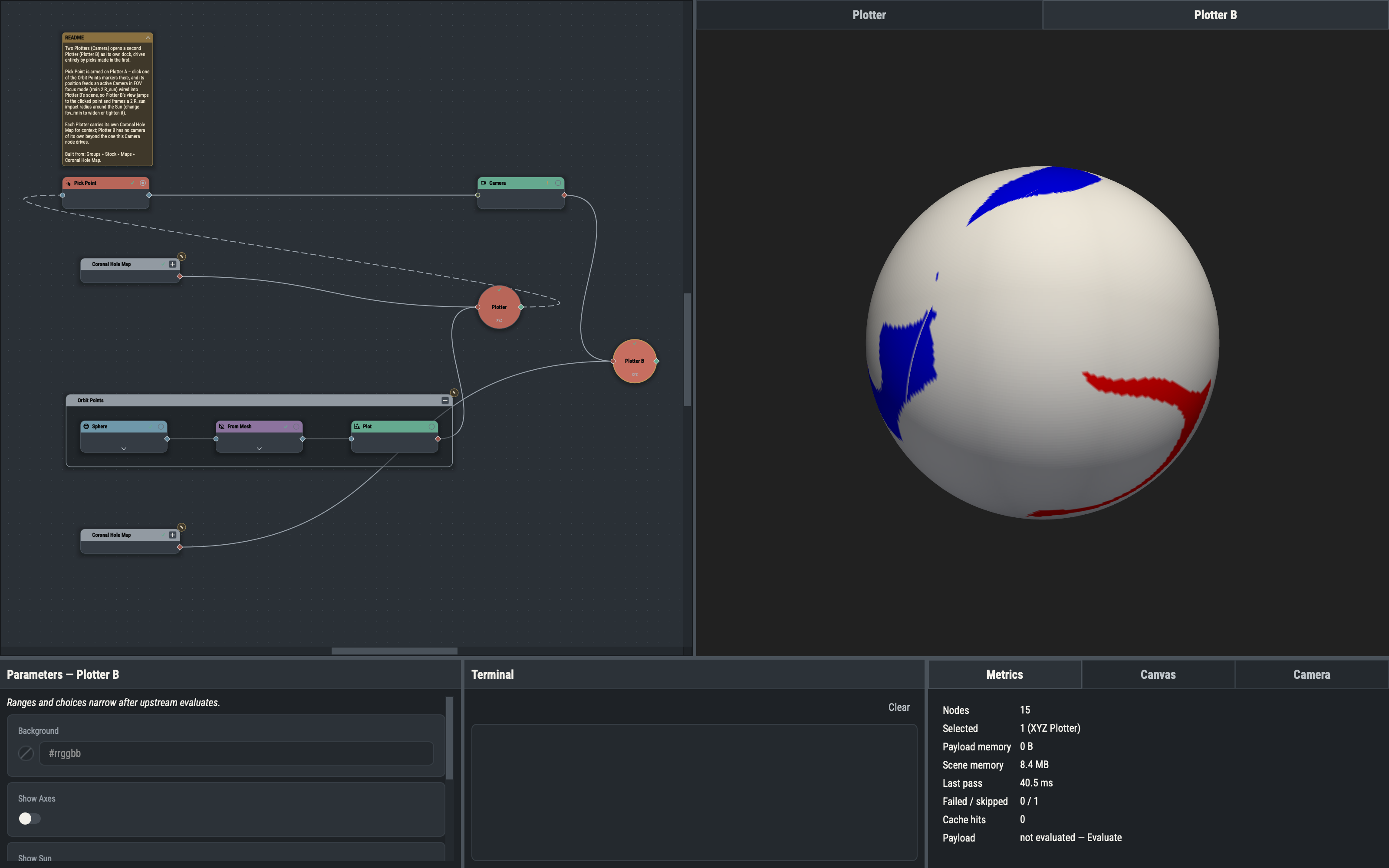
Exactly one Plotter is the main Plotter, and its viewport is the permanent member of the viewport tab group. Every other Plotter gets a tab in the same group, titled with the node’s title. The viewport tab group is separate from the pane groups below the canvas: a viewport never docks beside or under a pane, and a floated viewport re-docks only into its own group. Select a Plotter node to raise its tab. Tabs can be dragged out or double-clicked to float as ordinary windows; closing a floating viewport deletes nothing and returns it to the group. When every viewport floats, the canvas takes the full width. The viewport arrangement is not saved: viewports are rebuilt from the Plotter nodes on load. A floated viewport is an independent top-level window, so on macOS the main window can cover it.
Which Plotter is main, and how to change it, is covered in The Plotter. Parameter ⌖ picks also use the main Plotter (Interactivity).
Letterbox
Applying a line-of-sight or field-of-view camera view letterboxes the viewport. The viewport keeps its size, but the 3-D widget inside shrinks to the largest centered rectangle with the requested aspect ratio (x extent over y extent for Line of Sight, exactly 1 for Field of View). The axes widget, color bars and screenshots then match the applied view. Applying such a view from the Camera pane or an active Camera node arms the letterbox, explicitly applying an Explicit Focus view clears it, and a saved view restores the letterbox it was saved with. Resizing the window recomputes the margins but never the aspect, and Reset leaves it alone. See Camera Pane.
The bars outside the rectangle are painted with the Style page’s Viewport letterbox color (Canvas tab, Style page), a darker tone than the plotter background so that they read as bars. A standalone HTML export leaves the bars out (Standalone HTML pages).
Mouse and key bindings
The viewport’s mouse and key bindings are listed under Shortcuts. A macro cannot bind them, and a plain wheel always zooms (Macros); VTK’s single-letter keys are disabled and free for macros (see Suppressed VTK keys).
| Gesture | Action |
|---|---|
| Left-drag | Rotates the camera. |
| Shift + left-drag, or middle-drag | Pans the camera. |
| Ctrl + left-drag | Spins the camera, when no picker is armed. |
| Right-drag | Zooms the camera. |
| Wheel | Zooms: a dolly toward or away from the focus, or, with Scroll zooms view angle on in the Camera pane, a change of the view angle (Scroll wheel). |
| Right-click, Ctrl + left-click | Fires a pick when a holder or a ⌖ button has armed one (Interactivity). |
| Q | Closes the viewport (the pyvista quit binding). |
| ShiftC | Enables cell picking (pyvista). |
| B | Enables left-click point picking (pyvista). |
| V | Isometric view (pyvista). |
| Up and Down | Zoom in and out (pyvista). |
+ and - | Increase and decrease the point size and line width (pyvista). |
| Bare 1 to 9 | Recall the matching saved camera view (Saved camera views). |
Ctrl1 to Ctrl9 (Command on macOS) are held as pick chords while a viewport has the focus: the viewport consumes the digit, so it never reaches VTK or a macro (Chords). While Macro Mode is on, every viewport shows a “Macro mode” hint in its upper-right corner (Macros).
With Solar north on (Camera Pane), the viewport uses the terrain interaction style instead of the trackball, and the wheel still zooms.
Suppressed VTK keys
The underlying VTK interactor normally answers single letters (e, f, u, r, w, s, 3, p, j, t, c, a and their Shift variants) with actions such as exit, fly-to, wireframe and stereo. PVA swallows them before the interactor sees them, so they do nothing in a viewport and are free for macros. The Camera pane’s Reset button replaces the r camera reset.