 PVA
Guide / Chapter 5
Groups
A group is a small, reproducible combination of nodes, such as a reader with its slices or a tracer with its launch points, that you use as one building block inside a larger graph. Grouping is organization only: members stay ordinary nodes, and evaluation, caching and edges are unchanged whether a group is expanded, collapsed, nested or absent. A group saved as a group template (.pyvt) can be dropped into any session.
Creating a group
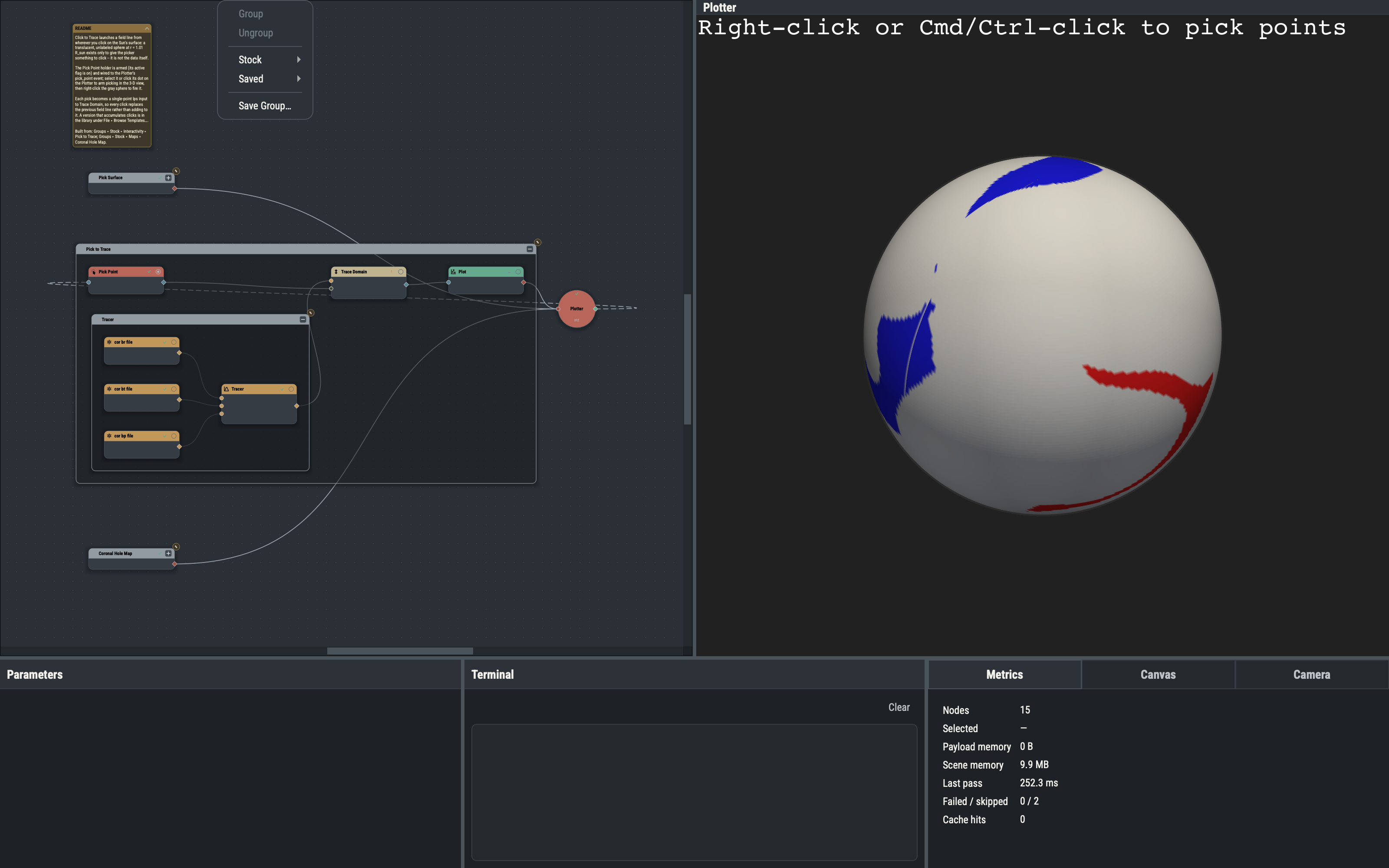
Select one or more nodes and choose Groups ▸ Group (CtrlG). The new group starts expanded and keeps the nodes selected; grouping is one undo step. Every node belongs directly to at most one group, and groups form a tree: a group’s direct members are the nodes not inside a child group, and its full membership is everything beneath it.
The whole-group rule
A selection can include whole groups. When every member of a group, including everything nested in it, is selected, the group counts as a unit and becomes a child of the new group:
- Free nodes and whole groups at the same level group together: the whole groups become children and the free nodes direct members.
- A selection entirely inside one existing group creates a new group inside it.
- A selection that straddles a group boundary (some but not all of a group’s members, plus nodes outside it) is refused with
partial group in selection — ungroup first. Ungroup the partial group, or extend the selection to cover it.
Expanded groups and collapsed cards
An expanded group is a rounded frame around its members with a title band. The frame refits as members move, only the band takes mouse input, and dragging the band moves every member. A collapsed group is one opaque card with the group name, an aggregate state badge and boundary ports; dragging it moves every member. Double-click an expanded group’s frame to collapse it, or a collapsed card to expand it. Collapsing and expanding never mark anything for re-evaluation or change results, and the collapsed state is saved with the session.
Boundary ports
A collapsed card exposes exactly the ports that matter from outside the group:
- Every member input that is unconnected or fed from outside the group becomes an input dot. A port fed only from inside stays hidden. A quiet optional port counts only while it is drawn (relevant, connected or pinned).
- A member’s main output appears when it has no consumer inside the group, or when any consumer lies outside it. A leaf with no consumers appears.
- A member’s event ports, such as a Plotter’s
events, appear only when something outside the group consumes them.
Each boundary dot stands in for the member’s real port: dragging to or from it connects that port, and nested groups contribute their ports to the outer card. A card has its own input and output sides, set from the Canvas pane, independent of its members’ sides.
Selecting, renaming and ungrouping
A selection that exactly matches a group’s full membership is a whole-group selection. The Parameters pane then shows the group’s name and member count (Group selection), and the Canvas pane’s position and port-side controls apply to the group (Canvas Pane). Double-click a group’s title to rename it in place.
Groups ▸ Ungroup (CtrlShiftG) dissolves exactly one level: only the outermost touched groups are dissolved, and members of a group inside another move up into the parent. Members, edges and parameters are untouched. A group is one item for stacking, and it hosts at most one note, like a node (Notes).
Saving a group
Select nodes and choose Groups ▸ Save Group… (CtrlAltG). PVA asks for a name and writes <slug>.pyvt to the groups folder of the PVA home; the slug is the lowercase name with other characters collapsed to hyphens, and an existing file is replaced only after confirmation. Saving is refused if the selection contains a Snapshot that holds data, since a group template never stores computed data.
Saving works on the selected nodes, not on a canvas group as such. Every group whose members are all selected, at any depth, is recorded with its name, nesting, collapsed state and port sides; a partly covered group is not recorded and its nodes become free members. Hosted notes on saved nodes and groups are saved; free notes are not. A .pyvt file holds the recipe only, never computed data, so its nodes arrive unevaluated and compute when the graph runs.
A .pyvt file is plain YAML. It has the same version gate, nodes, edges and notes as a session but no viewports, animations or macros, and it embeds the custom opacity functions and colormaps its nodes use (they are available to the receiving session only, not added to your library). The .pyv key list is in Sessions.
Dropping a group into a session
Groups ▸ Stock lists the groups that ship with PVA, in the folders Fields, Interactivity, Maps, Slices, Spacecraft, Surfaces and Tracing, and Groups ▸ Saved lists your groups folder, with subfolders as submenus. Choosing one adds its nodes, edges, group tree and notes and selects every new node. If the file’s groups form one tree covering every node, the outer group takes the file’s name and stays expanded; otherwise the nodes are wrapped in a new expanded group named after the file. The same submenus are in the canvas right-click menu, which drops at the click, and the Quick Add palette has a Groups section. A file that fails to load is reported in the Terminal.
Settings ▸ Defaults ▸ Groups manages saved groups: rename (the file is rewritten under the new slug), delete, and star as a favorite. The Tracing groups trace field lines through a Tracer: Trace Forward and Trace Forward & Backward with one Trace Domain node in the direction their name gives, Inter-Domain Trace with two Tracers and a Trace Multi Domain node. The Fields groups each read their components from one MAS File on the psi-data-utils run source, so a single reader supplies a whole vector field. The groups for the other readers (Custom 3D File, Geometry File, HDF 1D File and Table DAT) are not in the menu; download them from the template store, which shows every stock group and template with its graph.