 PVA
Guide / Chapter 14
Interactivity
A click in a 3-D viewport produces the point or mesh you clicked, and a camera move produces the new camera position. These become data through a Plotter’s events output and three holder nodes, which keep the last firing as their own state so the rest of the graph can use it. Parameters can also take a one-shot pick that fills them once.
The events output
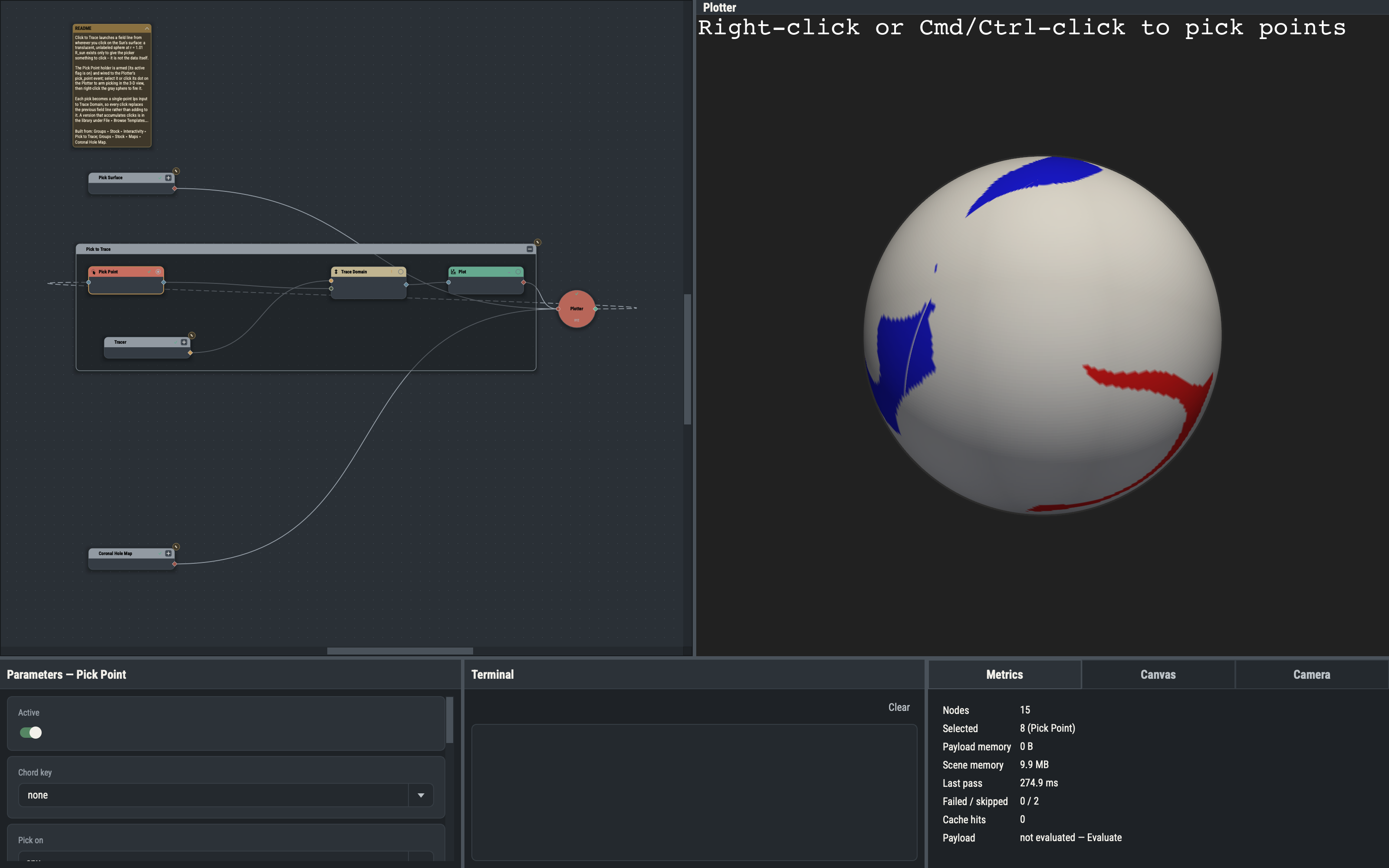
A Plotter’s events output is an ordinary output diamond in the event color (see The Plotter). It connects only to a holder; any other target is refused, with the reason in the Terminal. Dropping it on a holder’s event input connects the matching event (pick_point, pick_mesh or camera) and activates the holder at once. An Accumulator connected straight to an event still works and receives every firing, whatever the chord (see Accumulator).
The holder nodes
Holders are under Nodes ▸ Plotter ▸ Events. Each has one event input and one output and passes the fired payload through unchanged. Pick Point and Track Camera output a dataset(stack); Pick Mesh outputs the generic dataset it picked.
| Node | Holds |
|---|---|
| Pick Point | The points picked in a Plotter’s viewport. |
| Pick Mesh | The dataset behind the mesh picked, as it was wired into that Plot. |
| Track Camera | The camera position of a viewport as the view moves, so other nodes can follow it. |
Besides the menu, right-clicking a Plotter offers Add Pick Point, Add Pick Mesh and Add Track Camera, and CtrlShiftK does the same for a selected Plotter (see Canvas). The new holder lands to the right of the Plotter, connected, active and selected.
Arming and the held payload
Every holder has an Active switch. Only an active holder listens: it arms the viewport for its gesture. Arming is not an edit. Switching Active, or changing any other arming setting (chord, picker, marker, highlight), re-arms the live viewport without dirtying the node or anything downstream and without clearing the held payload.
The last firing is the node’s own state. A holder is always cached and its payload is saved with the session in its data sidecar, so picked data survives reopening the file (see Sessions). A holder saved into a group template is stored fresh, unfired.
Firing a pick
While at least one holder is active for a Plotter, a right-click or CtrlLeft-click (Command on macOS) in its viewport fires a pick. With no picker armed, Ctrl+left-drag still spins the camera. The payload goes to every active holder armed on the fired chord and to any other consumer connected directly to the event. Pick Point’s payload is a dataset(stack) of picked points as (r, θ, φ) in solar radii and radians (converted from the Cartesian viewport on an XYZ Plotter), plus the value array hit. Pick Mesh’s payload is the dataset wired into the picked Plot, unchanged.
Pick Point
Pick Point records where a ray from the click meets a surface.
| Option | Default | Meaning |
|---|---|---|
| Chord key | none | Which chord fires this holder (see Chords). |
| Pick on | any | Restrict to one connected Plot’s mesh (see Pick on). |
| Picker | point | point snaps to the nearest vertex, cell takes the exact surface intersection, hardware uses the GPU picker. |
| Pick through | off | Fire a hit for every actor along the ray (see Pick through). Hidden with hardware. |
| Tolerance | 0.025 | Pick tolerance as a fraction of the window diagonal. Hidden with hardware. |
| Show marker | on | Draw a marker at the picked point. |
| Marker size, Marker color | 10, blank | Marker look; hidden while Show marker is off. |
| Pick empty space | off | Pass pyvista’s pickable_window option, so a click on empty space can fire too. |
| Log to terminal | off | Write the nearest hit of each firing to the Terminal. |
Pick Point also has tolerance and point_size drive ports (see Parameter Pane).
Pick Mesh
Pick Mesh outputs the dataset that was wired into the Plot you picked, exactly as that Plot received it: faces, value arrays and frame are all kept, so a second Plot wired to the holder draws the same surface with the same values. (For a Plot of a grid slice this is the whole grid the Plot was given, not just the rendered slice. Volumes cannot be picked, and a pick on something no Plot owns, such as the sun glyph or the axes, fires nothing.) It shares Chord key, Pick on and Pick through with Pick Point, but its Picker offers only cell (the default) and hardware. Highlight picked mesh (off) and Highlight color mark the picked mesh; with Pick through on, the highlight marks only the nearest mesh.
Track Camera
Track Camera has one parameter, Active. While active, every camera change fires the camera event with the camera position as a one-point stack. Connect it to a Camera node’s pos port to make one viewport follow another. It is never exclusive and has no chord.
Chords
A chord lets several holders share one Plotter. Chord key none fires on a plain right-click (or Ctrl+left-click); 1 to 9 fire while Ctrl1 to Ctrl9 is held, the last digit pressed winning. The digit is tracked application-wide, so chords work in every viewport. The viewport consumes it, so it never reaches VTK or a macro, and Ctrl+digit cannot be bound as a macro (see Macros).
Exclusivity is per Plotter and per chord. Activating a pick holder deactivates any active holder of the other pick kind on the same Plotter and chord; holders on different chords never conflict. Several active holders of one kind on a chord all receive every firing, and the lowest id supplies the picker options.
Pick on
Pick on lists any plus one entry per Plot connected to the holder’s Plotter. With a Plot chosen, a pick counts only when it lands on that Plot’s actor. With Pick through on, the whole ray is filtered, so an occluded target still fires and a target absent from the ray fires nothing.
Pick through
Normally a pick reports its nearest hit. With Pick through on, Pick Point reports every actor the ray crosses, one point per actor, nearest first. Pick Mesh walks the same ray, filtered by Pick on, and outputs the dataset of the nearest crossed Plot; an occluded target Plot still fires. It works with the point and cell pickers only.
Every Pick Point payload carries an integer value array hit, with or without Pick through; 0 is always the nearest hit. Pick Mesh payloads carry no hit.
Using holder output
Pick Point’s output is an ordinary stack, so it feeds tracers, shapes, Plot, the Accumulator or a Camera’s pos port. Pick Mesh’s output is the picked Plot’s dataset, so it feeds a Plot or any mesh filter directly. Typical patterns: Click to Trace, Click to Volume, Camera Follows Pick and the groups Pick to Trace and Pick to Volume.
To select a single field line from a traced bundle, wire a Pick Point holder into the position port of Nearest Element with output set to slice and pin set to line: it returns the one line passing closest to the picked point, with its values and time, so it can be drawn thick over the dimmed bundle, exported or fed onward. The group Pick Line wires this up ready to use. The same node works for single points and other slices: with output set to point it returns the one entry nearest a pick, with its values, as a one-point stack, and pinning r on a grid gives the shell through the pick. Nearest Index returns that entry’s index.
One-shot pick from a parameter
Independently of holders, a parameter such as a shape generator’s position shows a ⌖ button. Press it, then right-click or Ctrl+left-click in the main Plotter’s viewport: the picked (r, θ, φ) is written to the parameter (as r,t,p text for a text parameter), the pick disarms and the write is one undo step. Only one one-shot pick can be armed; pressing another ⌖ replaces it. The Camera pane’s ⌖ buttons work the same way but target the Plotter chosen in its combo (see Camera Pane).
The one-shot pick uses its own picker and tolerance (Settings ▸ Defaults ▸ Picking, default point and 0.025), which do not affect holders; they carry their own parameters (see Settings).
Macros
Picks are not the only way to act from the viewport. Macros bind keys and scroll-wheel gestures to parameter actions that fire while a viewport has the focus. The pick gestures and the chord digits described above are reserved, so a macro cannot bind them.