 PVA
Guide / Chapter 22
Files and Folders
PVA keeps its per-user data in one folder, the PVA home, whose location depends on the platform and can be overridden with PVA_HOME. Settings, style overrides, favorites, saved groups and templates, caches and screenshots are plain files there, so you can back them up, copy them to another machine or delete them to start over. Sessions are saved wherever you choose.
Where the PVA home is
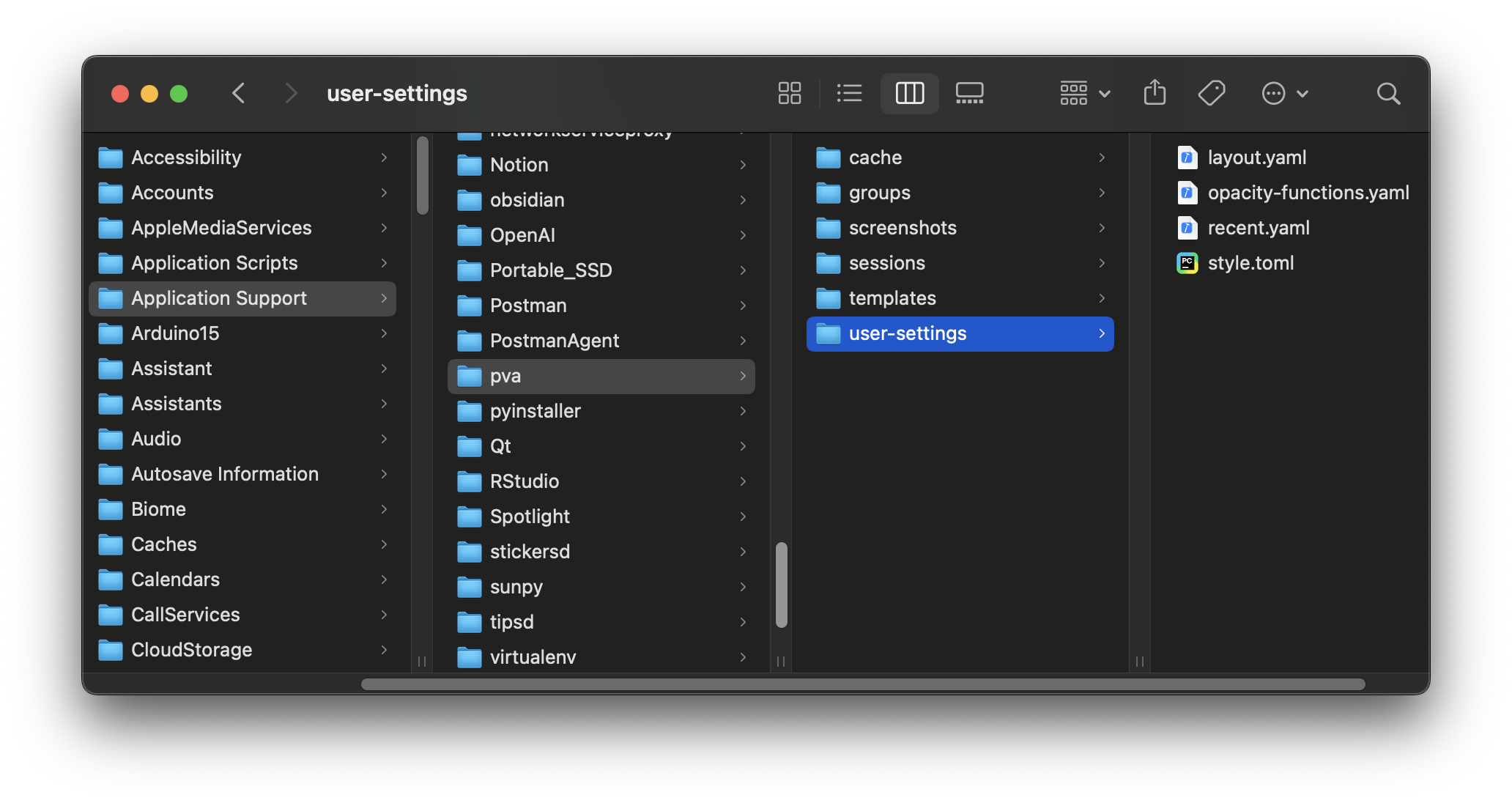
The location is resolved every time it is needed: the PVA_HOME environment variable if it is set and not empty (a leading ~ is expanded), otherwise the platform default.
| Platform | Default PVA home |
|---|---|
| macOS | ~/Library/Application Support/pva |
| Linux | $XDG_DATA_HOME/pva when set, otherwise ~/.local/share/pva |
| Windows | %APPDATA%\pva |
File ▸ PVA Home opens the folder. The folder and each subfolder are created when PVA first writes into them. To use a different location, set PVA_HOME before starting PVA, for example PVA_HOME=/data/pva-work python -m _pva.run. A double-clicked application bundle does not read your shell profile, so set the variable in the environment of whatever launches PVA. Two installations pointed at one folder share settings, favorites, saved groups and templates. The stock templates and groups are installed inside the application and are read-only; your own live in the PVA home and are listed beside them in the menus.
What lives where
Paths are relative to the PVA home. PVA creates and rewrites these files, and you can edit most of them by hand while PVA is closed.
| Path | Contents |
|---|---|
user-settings/settings.yaml | The Defaults values as flat dotted keys, written on Save changes. Unknown keys are ignored; a missing file means every default stands. |
user-settings/style.toml | Fonts, colors, canvas metrics, window values and the [feedback] animation. Seeded at the first launch, read at startup, only known keys accepted. |
user-settings/plotter.toml | The [theme] table of Plotter theme overrides only. |
user-settings/recent.yaml | Up to ten session paths, newest first, behind File ▸ Open Recent. |
user-settings/favorites.yaml | The favorites as kind / key pairs. Entries whose target is gone are hidden but kept. |
user-settings/layout.yaml | Window geometry and pane arrangement, written on quit and ignored when malformed or from another layout version (see 1AU View). |
user-settings/camera-views.yaml | The named camera views, shared by the Animate editor and headless renders. |
user-settings/opacity-functions.yaml | The custom Plot opacity functions, also read by headless renders. |
user-settings/colormaps.yaml | The custom colormaps, also read by headless renders. |
groups/ | Saved groups as .pyvt files; subfolders become submenus. |
templates/ | Saved templates as .pyv files; subfolders become submenus. |
sessions/ | The folder the Open and Save Session dialogs start in; sessions can be saved anywhere. |
cache/spacecraft/ | Fetched spacecraft data (.npz); safe to delete. |
cache/exports/ | Files written by an Exporter whose destination is Cache Directory (HDF, CSV and text), unless the Exports folder setting names another folder. The Cache Directory source of every file reader scans the same folder. |
cache/chrome/ | Generated interface arrow glyphs (SVG); regenerated as needed. |
screenshots/ | The default output folder for screenshots (capture-YYYYMMDD-HHMMSS.png) and movies (<animation name>.mp4). The Screenshots folder setting replaces it; blank restores it. |
A session is one .pyv file saved wherever you like; the <session name>.data folder of state sidecars must travel with it (see State sidecars). Kept animation frames go beside the movie (see Output choices); frames that are not kept and the temporary session copy of a render go to a pva-animate- folder in the operating system’s temporary directory, removed when the render ends (see Headless Rendering).
Data downloaded by readers
Reader nodes that fetch sample data through the PSI data utilities save it in the folder set by Data folder (Settings ▸ Defaults ▸ Data), or in the data utilities’ own cache location when that is blank. That folder is outside the PVA home unless you point the setting there.
Download all sample assets
File ▸ Download All Assets… fetches the sample files of the psi-data-utils catalog (about 2.1 GB) into the data directory setting, or the cache if none is set, so readers find them on disk instead of downloading on first use. The MAS File reader’s psi-data-utils (run) source fetches a run’s files on demand. Files already present are skipped, checked by hash. The download runs in the background, with progress in the Terminal, and the same menu entry cancels it. Quitting PVA waits for the current file to finish. Run it again after a failure.
Starting over
- Delete
user-settings/layout.yamlto reset the window and pane layout (View ▸ Reset pane layout resets the panes alone). - Delete
user-settings/settings.yamlto return every Defaults value to its default. - Delete
user-settings/style.tomland restart to regenerate it. - Delete
user-settings/plotter.tomlto restore the Plotter theme. - Delete the whole PVA home, or point
PVA_HOMEat an empty folder, for a clean first-run state. Your sessions are unaffected unless you saved them inside it.