 PVA
Guide / Chapter 16
Exporting
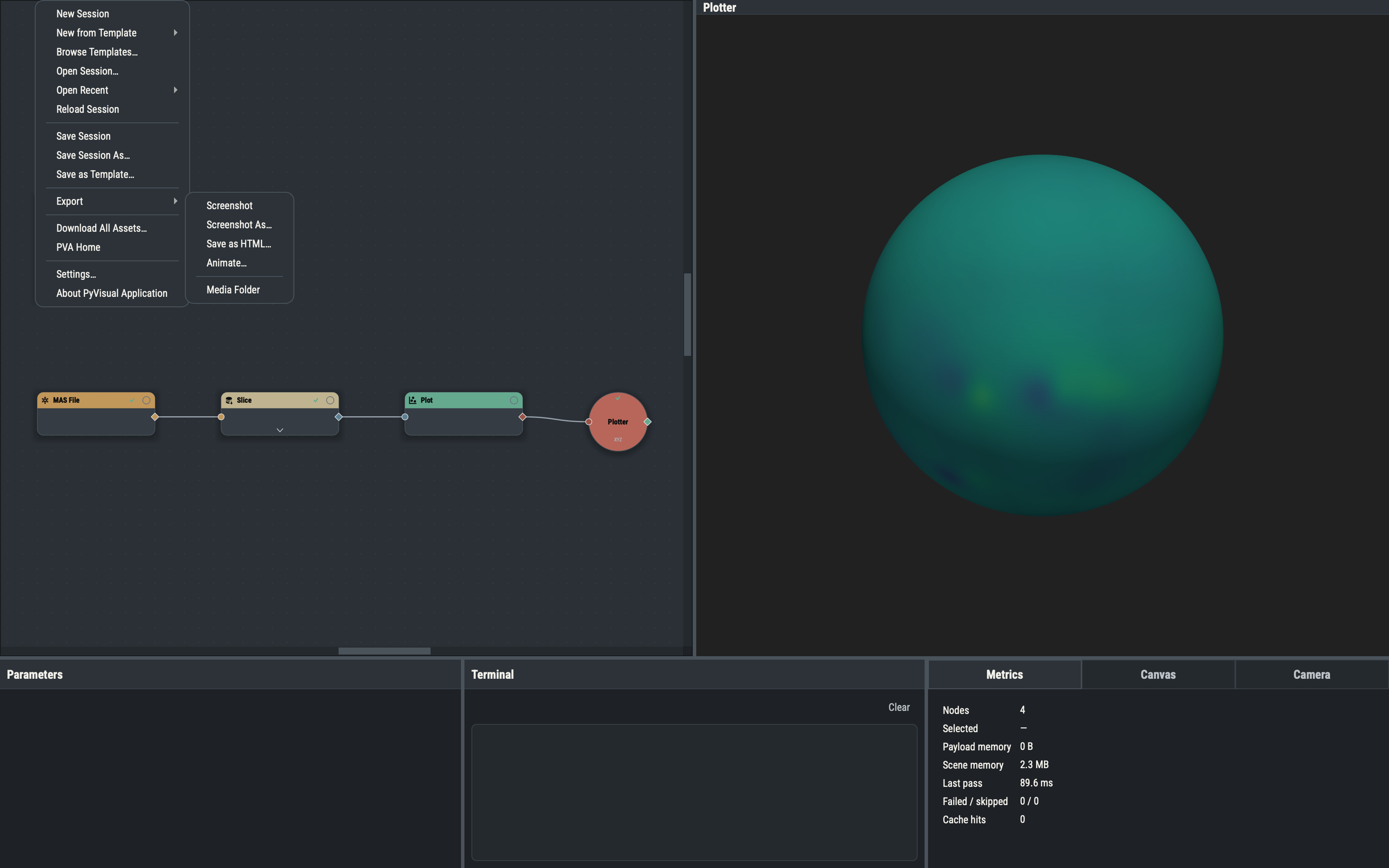
PVA saves images from a Plotter’s own renderer, not from the screen, so overlapping windows do not matter and an image can be larger than the viewport you see. The commands live under File ▸ Export: Screenshot, Screenshot As…, Save as HTML…, Animate… and Media Folder. A screenshot is one render; a saved HTML page is the scene itself, viewable in a browser; Animate… opens the editor for Animations. Data, as opposed to pictures, is written by the Exporter nodes.
Screenshots
Screenshot (CtrlShiftP) saves a PNG at once to the screenshots folder under a timestamped name such as capture-20260101-093000.png, adding a counter rather than overwriting. Screenshot As… (CtrlAltShiftP) asks for the folder and name first. Media Folder opens the screenshots folder, which is the Screenshots folder setting or the screenshots folder of the PVA home when that is blank.
Both act on the Plotter chosen in the Camera pane’s Plotter combo, which follows the canvas selection and falls back to the main Plotter (see Camera Pane). A session with no Plotter, or a Plotter with no live viewport, logs a message in the Terminal instead of writing a file. Success logs saved <path>; failures are Terminal errors, never dialogs.
The Capture tab of Settings ▸ Defaults sets the folder, the Scale (an integer from 1 to 4 multiplying the on-screen size, for publication-quality images) and a Transparent background. They are read at the moment you capture. Set the pose first in the Camera pane. To render a saved session without the window, use pva --headless SESSION.pyv --screenshot OUT.png (see Headless Rendering).
Standalone HTML pages
Save as HTML… writes the chosen Plotter’s scene as one self-contained web page. The dialog starts in the screenshots folder with a timestamped name such as capture-20260101-093000.html. The page carries every visible actor with its mesh, colors and color table, the scalar bars, axes, lights, camera and background, together with the vtk.js viewer that draws them, so it opens in any browser without a network connection and can be placed on a web server or sent to a colleague. Its title is the Plotter node’s title. It acts on the same Plotter as a screenshot, logs saved <path> or an error line in the Terminal, and has no keyboard shortcut.
The page is a view of the scene, not of the session: it cannot be opened in PVA, and the browser viewer only orbits, pans and zooms the camera. Text and corner annotations and the letterbox bars are left out, and volumes are drawn by the browser’s own volume renderer, close to but not identical to PVA’s. The Capture settings (scale, transparent background) do not apply.
Exporter nodes
Three nodes under Nodes ▸ Export write data to disk: the CSV Exporter, the HDF Exporter and the Text Exporter. Each has one optional input, x, for the value or dataset to write, and these rows:
| Row | Meaning |
|---|---|
| Destination | Cache Directory (the Exports folder setting, or cache/exports in the PVA home when blank), Temporary Directory (a pva-exports folder under the system temporary directory) or Browse Directory. |
| Directory | The output folder; shown only for Browse Directory, and it must not be blank. |
| File Name | The name without its suffix: the format’s fixed suffix (.csv, .h5 or .txt) is shown beside the box and appended, and a typed suffix is not doubled. Blank uses the value’s name for a grid or stack with a single value array, and export otherwise. |
| Auto Export | Writes after every pass that began with the exporter out of date. |
| Export | Writes once. |
The folder is created if it is missing. Evaluating an Exporter writes nothing: the Export button pulls its input through the graph and then writes, and the Terminal logs an export: line with the written path (the Text Exporter logs the text it wrote). A failed export is logged as an error with the same prefix.
Auto Export. With Auto Export on and the input connected, an Exporter is a root of every pass, like a visible Plot. A pass that begins with it out of date, because of an upstream change, an edit to its own rows or a session load, writes the file again; a pass with nothing changed writes nothing. The Export button still works and writes once. See Run, Evaluate and Auto.
Safe writes. Every file is written beside its target and then swapped in, so a file that a reader in the graph holds open is replaced in one step and that reader re-reads it on the next run. An Exporter refuses to write a file that a node upstream of it reads, naming that node, so an export cannot overwrite its own source. A native mesh and a volume cannot be exported: the error says to convert a mesh with From Mesh first.
- CSV Exporter. A stack becomes one column per component: the points
r,tandp, then each value array under its own name, thentimewhen the stack has a time scale. An array becomes a singlevaluescolumn. A grid is refused, because a table cannot hold an n-D array (use the HDF Exporter), and so is a number (use the Text Exporter). - HDF Exporter. A grid is written in the PSI layout: value datasets with three attached coordinate scales and the
name,unit,orderandscalesattributes, so the file reads back through a MAS File node and can feed a Tracer. A stack becomes one dataset per component and an array a single dataset; the grid options below do not apply to them. A number is refused. - Text Exporter. A number, or a small array, is written as text with its unit, and the same text is logged to the Terminal. Any other payload is refused.
The HDF Exporter’s options for a grid are:
| Row | Meaning |
|---|---|
| Separate Files | On (the default) writes one file per value array, named from the File Prefix, the File Name and the File Suffix of that value’s row in the Files box. Off writes every value into one file that shares a single set of scales, one Mesh Staggering and one Attributes list; read such a file one dataset at a time through a reader’s Target dropdown. |
| Array Order | F (the default, the PSI standard) stores (np, nt, nr); C stores (nr, nt, np). |
| Scales box | One row per scale (r, t, p); its text names that scale’s dataset. Blank uses dim1, dim2 and dim3. |
| Datasets box | One row per value array. Dataset ID names the HDF dataset (blank: Data with Separate Files on, the only name mapfl reads, else the value’s own name); Variable is the PSI name attribute (blank: the value’s own name; set br, bt or bp for a Tracer). |
| Files box | With Separate Files on, one row per value array: File Prefix, File Suffix, Mesh Staggering (for example hmm) and Attributes as key=value; pairs. |
Scene export
A saved session can also be exported as a glTF scene without opening the window, with pva --headless SESSION.pyv --export-scene OUT.gltf. The mode, its options and the sidecar it writes are described under Screenshot and export-scene modes.