PVA’s key bindings cannot be rebound. Ctrl stands for the Command key on macOS and the Control key on Linux; where a platform has its own standard key for a command (Undo, Save, Preferences), the tables show both forms. Menu entries show their chord beside the label (see 1AU View), and the Settings window’s Shortcuts page shows the same list (see Settings).
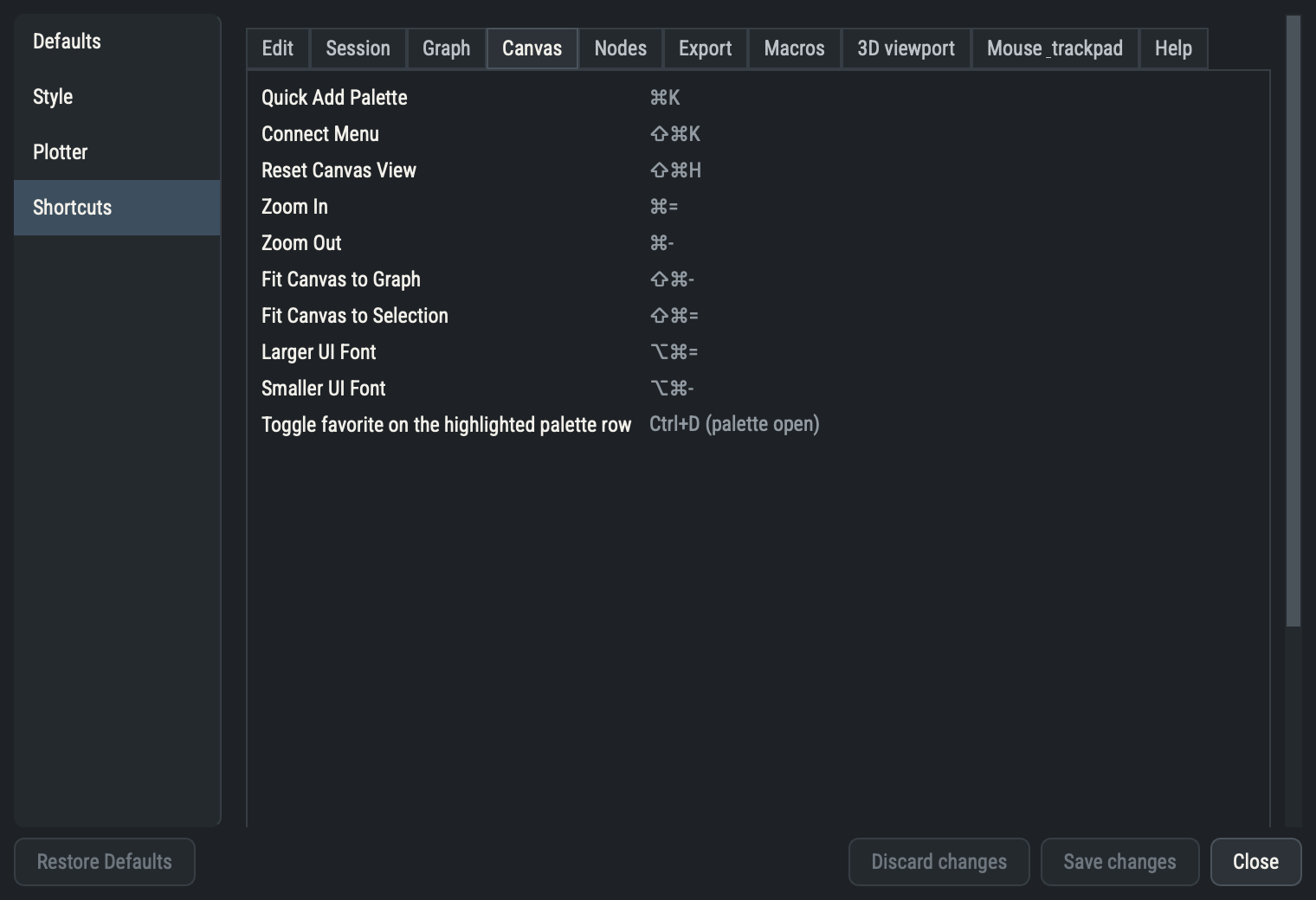
The Settings window on the Shortcuts page, Canvas tab
Unless noted, a chord works with the keyboard focus anywhere in the main window, including the many that have no menu entry. Text fields keep their own Delete, Backspace and word-jump keys, so Delete Selection and the nudge chords act only when the canvas has the focus. Delete removes just the selected nodes, with no confirmation. Copy is CtrlD, not the platform’s Copy key. Bare digits 1 to 9 recall saved camera views while a 3-D viewport has the focus, and they take precedence over macros.
Edit
Command
Shortcut
Undo
⌘Z / Ctrl+Z
Redo
⇧⌘Z / Ctrl+Shift+Z
Session
Command
Shortcut
New Session
⌘N / Ctrl+N
Save Session
⌘S / Ctrl+S
Save Session As…
⇧⌘S / Ctrl+Shift+S
Open Session…
⌘O / Ctrl+O
Settings…
⌘, / Ctrl+, / Ctrl,
Save as Template…
CtrlAltS
Reload Session
CtrlAltR
Graph
Commands that act on the selected nodes and on evaluation. Deep Copy creates a Snapshot node holding a captured copy of the payload (see Copying).
Command
Shortcut
Delete Selection
⌫ / Delete / Backspace
Evaluate Selection
CtrlReturn / CtrlEnter
Run Graph
CtrlShiftReturn / CtrlShiftEnter
Toggle Auto Execution
CtrlE
Group
CtrlG
Ungroup
CtrlShiftG
Send Backward
Ctrl[
Send Forward
Ctrl]
Send to Back
CtrlShift[
Send to Front
CtrlShift]
Nudge Left
CtrlLeft
Nudge Right
CtrlRight
Nudge Up
CtrlUp
Nudge Down
CtrlDown
Nudge Left ×10
CtrlShiftLeft
Nudge Right ×10
CtrlShiftRight
Nudge Up ×10
CtrlShiftUp
Nudge Down ×10
CtrlShiftDown
Selected Port Left
AltLeft
Selected Port Right
AltRight
Selected Port Top
AltUp
Selected Port Bottom
AltDown
Copy
CtrlD
Deep Copy
CtrlShiftD
Select All
CtrlA
Optimize Layout
CtrlShiftL
Save Group…
CtrlAltG
Canvas
View commands and the Quick Add and Connect menus. While the Quick Add palette is open, CtrlD adds the highlighted row to favorites or removes it (see Favorites).
Command
Shortcut
Quick Add Palette
CtrlK
Connect Menu
CtrlShiftK
Reset Canvas View
CtrlShiftH
Zoom In
Ctrl=
Zoom Out
Ctrl-
Fit Canvas to Graph
CtrlShift-
Fit Canvas to Selection
CtrlShift=
Larger UI Font
CtrlAlt=
Smaller UI Font
CtrlAlt-
Input
Action
Ctrl+D (palette open)
Toggle favorite on the highlighted palette row
Nodes
Node
Shortcut
Add MAS File
CtrlR
Add Custom 3D File
CtrlShiftR
Add Tracer
CtrlT
Add Slice
CtrlL
Add Plot
CtrlP
Add Camera
CtrlShiftC
Add Number
CtrlShiftN
Add Trace Domain
CtrlF
Add Read
CtrlShiftO
Export
Command
Shortcut
Screenshot
CtrlShiftP
Screenshot As…
CtrlAltShiftP
Animate…
CtrlShiftA
Macros
Command
Shortcut
Macro Mode
CtrlM
Edit Macros…
CtrlShiftM
While Macro Mode is on and a 3-D viewport has the focus, recorded macros act on node parameters. Every chord above, every binding in the 3-D viewport table, Ctrl+digit, the bare digits 1 to 9 and a bare wheel notch are reserved (see Reserved gestures).
Input
Action
Macros ▸ Edit Macros…
Session macros (viewport focus, Macro Mode on)
Help
Command
Shortcut
PyVisual Help
⌘? / F1
Mouse and trackpad
Input
Action
Right-click
Pick a port/edge, or open a context menu
⌘+1 … ⌘+9 + right-click
Chorded pick (a Plotter's event ports)
Two-finger scroll
Pan the canvas (⌘+scroll zooms instead)
Pinch
Zoom the canvas about the cursor
Scroll wheel
Zoom the canvas
Middle-drag
Pan the canvas
Double-click a title
Rename it inline
Return / Escape
Commit / cancel an inline edit
Drag from a port
Connect to a compatible port
⌥ + right-drag
Cut every connector the line crosses
Drag a link segment
Shift an angled connector
Double-click a link
Add or remove a break point
Right-click a link
Disconnect / Reset path
A trackpad scroll pans the canvas and Ctrl (Cmd) + scroll zooms; the Trackpad scroll pans style setting swaps them (see Panning and zooming). Scrolling over a spin box, combo box or slider changes its value only while Ctrl (Cmd on macOS) is held.
3-D viewport
The pyvista bindings come from the plotting library; the picking, chord and recall entries belong to PVA. VTK’s single-letter bindings are disabled in every viewport (see Suppressed VTK keys), so those letters are free for macros, except q and Shift+C.
Key
Action
Q
Close the viewport (pyvista quit)
Shift+C
Enable cell picking (pyvista)
B
Enable left-click point picking (pyvista)
V
Isometric view (pyvista)
Up
Zoom in (pyvista)
Down
Zoom out (pyvista)
+
Increase point size / line width (pyvista)
-
Decrease point size / line width (pyvista)
Wheel Up
Zoom in (mouse wheel / trackpad): dolly, or view angle when the Camera tab's switch is on
Wheel Down
Zoom out (mouse wheel / trackpad): dolly, or view angle when the Camera tab's switch is on
 PVA